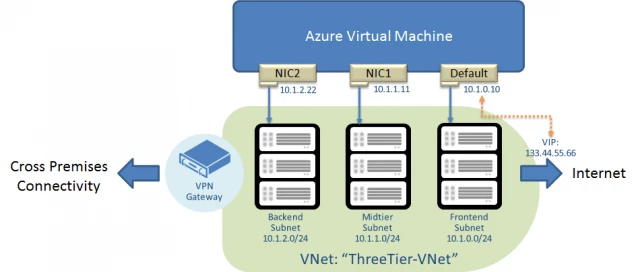
At TechEd Europe 2014, we announced support for multiple Network Interface (NICs) in Azure VMs, along with several important partnership in bringing Network Virtual Appliances to Azure, notably Citrix Netscaler and Riverbed appliances. Many network virtual appliances require multiple NICs. Now you can create multiple NICs on your Azure VMs. With multiple NICs you can better manage your network traffic. You can also isolate traffic between the frontend NIC and backend NICs, or separating data plane traffic from the management plane communication. Here’s an example of a VM with 3 NICs:
How to create a VM with multiple NICs
The instructions below will help you create a VM with 3 NICs: a default NIC and two additional NICs. The configuration steps use the virtual network with 3 subnets: Frontend (10.1.0.0/24), Midtier (10.1.1.0/24), and Backend (10.1.2.0/24) shown below as an example “ThreeTier-VNet”:
The configuration cmdlets below use the latest Azure PowerShell release. Please download and configure Azure PowerShell as described here.
1. Select a VM image from Azure VM image gallery:
$image = Get-AzureVMImage -ImageName "a699494373c04fc0bc8f2bb1389d6106__Windows-Server-2012-R2-201408.01-en.us-127GB.vhd"
2. Create an Azure VM configuration and the default administrator login:
$vm = New-AzureVMConfig -Name "MultiNicVM" -InstanceSize "ExtraLarge" -Image $image.ImageName –AvailabilitySetName “MyAVSet”
3. Specify the subnet and IP address of the default NIC. Note that the SubnetNames parameter must be the name of one of the subnets in your virtual network. We are using the Frontend subnet in this example.
Set-AzureSubnet -SubnetNames "Frontend" -VM $vm
Set-AzureStaticVNetIP -IPAddress "10.1.0.10" -VM $vm
4. Add additional NICs to the VM configuration. Similar to step (3), the SubnetName and StaticVNetIPAddress must correspond to the subnet definition of the virtual network. The interface name must be unique for the VM, but does not represent the names of the NICs inside the VM.
Add-AzureNetworkInterfaceConfig -Name "NIC1" -SubnetName "Midtier" -StaticVNetIPAddress "10.1.1.11" -VM $vm
Add-AzureNetworkInterfaceConfig -Name "NIC2" -SubnetName "Backend" -StaticVNetIPAddress "10.1.2.22" -VM $vm
5. After these steps, we are ready to create the VM. You will need to create the VM in the virtual network that contains the subnet names and IP addresses used above:
New-AzureVM -ServiceName "MultiNIC-CS" –VNetName “ThreeTier-VNet” –VM $vm
Multiple NIC FAQs & Constraints:
The current release of Multiple NIC feature has the following requirements and constraints:
1. Is the feature in GA or preview?
- GA
2. Which region will Multiple NICs be available? If not all regions, what about the rest of regions?
- Customers can use create VMs with multiple NICs today, starting in the North Europe region and subsequently all Azure regions in the coming weeks. Look for rollout updates here.
3. What’s the pricing of Multiple NICs?
- There is no additional charge, although the number of NICs is tied to VM SKUs.
4. Can I use Multiple NICs with Linux, FreeBSD, and other non-Windows OS Images?
- Multiple NICs work on any VMs in Azure except Basic SKUs.
5. How many NICs can I create?
- Large (A3) and A6: 2
- ExtraLarge (A4) and A7: 4
- A9: 2
- D3: 2
- D4: 4
- D13: 4
6. Are there any limitations to this feature that customers must be aware of?
- Multiple NIC is supported on Azure VMs (IaaS, Standard SKUs) only; and VMs must be in an Azure Virtual Network.
- Current release does not support adding or removing NICs after a VM is created.
- NICs in Azure VMs cannot forward traffic or act as Layer 3 (IP) gateways.
- Internet-facing VIP is only supported on the “default” NIC, and there is only one VIP mapped to the IP of the default NIC. The additional NICs cannot be used in a Load Balance set.
- The order of the NICs inside the VM will be random, but the IP addresses and the corresponding MACs will remain the same.
- You cannot apply Network Security Groups or Forced Tunneling to the non-default NICs. Adding support is on our roadmap.
Virtual Appliances in Azure – Citrix and Riverbed
We are working with several network appliance vendors to onboard their virtual appliances in Azure. At TechEd we gave demos of Citrix Netscaler and Riverbed Steelhead. We will continue to enhance the platform to support even more 3rd party virtual appliances. In addition to multiple NICs we are making the Ethernet (MAC) addresses of the NICs persistent through the life cycle of the VM. This helps those appliances that rely on the MAC address for licensing.
Below are more details on the TechEd Europe demos.
- We have showed a working prototype of Citrix Netscaler running in Azure with 2 NICs and using MAC persistence.
- We built a joint demo with Riverbed using SteelHead on premises, and SteelHead in Azure for WAN optimization to show how to integrate WAN optimization with Azure Site Recovery and ExpressRoute.
Riverbed is available today. Stay tuned as we grow the number of networking partners in the Azure Certified program.
This is just the beginning of our effort to make Azure Networking platform ready for virtual appliances, and there are a lot more in terms of Azure platform improvements and virtual appliance partnership to come!