Azure Web Sites has recently added support for the WebSocket protocol. Both .NET developers and node.js developers can now enable and use WebSockets in their applications.
There is a new option on a web site’s Configuration tab to enable WebSockets support for an application.

Once WebSockets has been enabled for a website, ASP.NET (v4.5 and above) and node.js developers can use libraries and APIs from their respective frameworks to work with WebSockets.
ASP.NET SignalR Chat Example
SignalR is an open source .NET library for building real-time web apps that require live HTTP connections for transferring data. There is an excellent site with introductory articles and details on the SignalR library.
Since SignalR natively supports WebSockets as a protocol, SignalR is a great choice for running connected web apps on Windows Azure Web Sites. As an example, you can run this sample chat application on Windows Azure Web Sites.
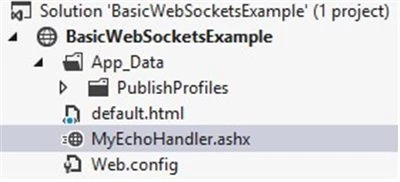
The screen shot below shows the structure of the SignalR chat sample:

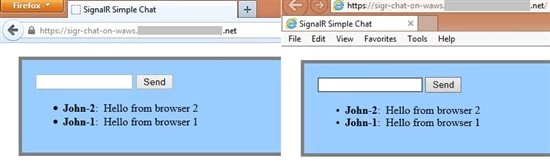
After creating a web application in Windows Azure Web Sites, enabling WebSockets for the application, and uploading the SignalR chat sample, you can run your very own mini-chat room on Windows Azure Web Sites!
The raw HTTP trace (shown below) from Fiddler shows how the WebSockets protocol upgrade request that is sent by the client-side portion of SignalR negotiates a WebSockets connection with the web server:
Request snippet: GET https://sigr-chat-on-waws.xxxx.net/signalr/connect?transport=webSockets snip HTTP/1.1 Origin: https://sigr-chat-on-waws.xxxx.net Sec-WebSocket-Key: hv2icF/iR1gvF3h+WKBZIw== Connection: Upgrade Upgrade: Websocket Sec-WebSocket-Version: 13 … Response snippet: HTTP/1.1 101 Switching Protocols Upgrade: Websocket Server: Microsoft-IIS/8.0 X-Content-Type-Options: nosniff X-Powered-By: ASP.NET Sec-WebSocket-Accept: Zb4I6w0esmTDHM2nSpndA+noIvc= Connection: Upgrade …
To learn more about building real-time web applications with SignalR, there is an extensive tutorial available on the SignalR overview website.
ASP.NET Echo Example
ASP.NET has supported WebSockets since .NET Framework v4.5. Developers will usually want to use higher level libraries like SignalR to abstract away the low-level details of managing WebSockets connections. However for the adventurous developer, this section shows a brief example of using the low-level WebSockets support in ASP.NET.
The ASP.NET Echo example project consists of a server-side .ashx handler that listens and responds on a WebSocket, and a simple HTML page that establishes the WebSocket connection and sends text down to the server.
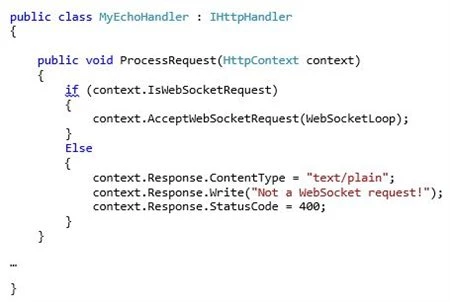
The .ashx handler listens for WebSockets connection requests:
The .ashx handler listens for WebSockets connection requests:
Once a WebSocket connection is established, the handler echoes text back to the browser:

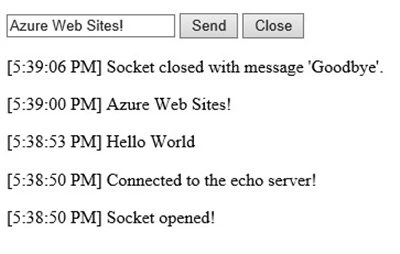
The corresponding HTML page establishes a WebSocket connection when the page loads. Whenever a browser user sends text down the WebSocket connection, ASP.NET will echo it back.

The screenshot below shows a browser session with text being echo’d and then the WebSockets connection being closed.
Node.js Basic Chat Example
Node.js developers are familiar with using the socket.io library to author web pages with long-running HTTP connections. Socket.io supports WebSockets (among other options) as a network protocol, and can be configured to use WebSockets as a transport when it is available.
A Node.js application should include the socket.io module and then configure the socket in code:
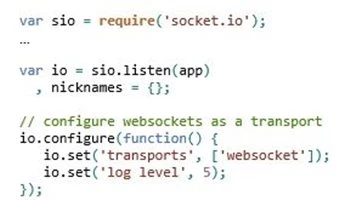
The sample code shown below listens for clients to connect with a nickname (e.g. chat handle), and broadcasts chat messages to all clients that are currently connected.

The following small tweak is needed in web.config for node.js applications using WebSockets:

This web.config entry turns off the IIS WebSockets support module (iiswsock.dll) since it isn’t needed by node.js. Nodej.js on IIS includes its own low-level implementation of WebSockets, which is why the IIS support module needs to be explicitly turned off.
Remember though that the WebSockets feature still needs to be enabled for your website using the Configuration portal tab in the UI shown earlier in this post!
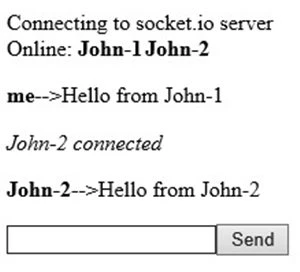
After two clients have connected and traded messages using the sample node.js application, this is what the HTML output looks like:
The raw HTTP trace (shown below) from Fiddler shows the WebSockets protocol upgrade request that is sent by the client-side portion of socket.io to negotiate a WebSockets connection with the web server:
Request snippet: GET https://abc123.azurewebsites.net/socket.io/1/websocket/11757107011524818642 HTTP/1.1 Origin: https://abc123.azurewebsites.net Sec-WebSocket-Key: rncnx5pFjLGDxytcDkRgZg== Connection: Upgrade Upgrade: Websocket Sec-WebSocket-Version: 13 … Response snippet: HTTP/1.1 101 Switching Protocols Upgrade: Websocket Server: Microsoft-IIS/8.0 X-Powered-By: ASP.NET Sec-WebSocket-Accept: jIxAr5XJsk8rxjUZkadPWL9ztWE= Connection: Upgrade …
WebSockets Connection Limits
Currently Azure Web Sites has implemented throttles on the number of concurrent WebSockets connections supported per running website instance. The number of supported WebSockets connections per website instance for each scale mode is shown below:
- Free: (5) concurrent connections per website instance
- Shared: (35) concurrent connections per website instance
- Basic: (350) concurrent connections per website instance
- Standard: no limit
If your application attempts to open more WebSocket connections than the allowable limit, Windows Azure Web Sites will return a 503 HTTP error status code.
Note: the terminology “website instance” means the following – if your website is scaled to run on (2) instances, that counts as (2) running website instances.
You Might Need to use SSL for WebSockets!
There is one quirk developers should keep in mind when working with WebSockets. Because the WebSockets protocol relies on certain less used HTTP headers, especially the Upgrade header, it is not uncommon for intermediate network devices such as web proxies to strip these headers out. The end result is usually a frustrated developer wondering why their WebSockets application either doesn’t work, or doesn’t select WebSockets and instead falls back to less efficient alternatives.
The trick to working around this problem is to establish the WebSockets connection over SSL. The two steps to accomplish this are:
- Use the wss:// protocol identifier for your WebSockets endpoints. For example instead of connecting to ws://mytestapp.azurewebsites.net (WebSockets over HTTP), instead connect to wss://mytestapp.azurewebsites.net (WebSockets over HTTPS).
- (optional) Run the containing page over SSL as well. This isn’t always required, but depending on what client-side frameworks you use, the “SSL-ness” of the WebSockets connection might be derived from the SSL setting in effect for the containing HTML page.
Windows Azure Web Sites supports SSL even on free sites by using a default SSL certificate for *.azurewebsites.net. As a result you don’t need to configure your own SSL certificate to use the workaround. For WebSockets endpoints under azurewebsites.net you can just switch to using SSL and the *.azurewebsites.net wildcard SSL certificate will automatically be used.
You also have the ability to register custom domains for your website, and then configure either SNI or IP-based SSL certificates for your site. More details on configuring custom domains and SSL certificates with Windows Azure Web Sites is available on the Windows Azure documentation website.