Video Indexer (VI), the AI service for Azure Media Services enables the customization of language models by allowing customers to upload examples of sentences or words belonging to the vocabulary of their specific use case. Since speech recognition can sometimes be tricky, VI enables you to train and adapt the models for your specific domain. Harnessing this capability allows organizations to improve the accuracy of the Video Indexer generated transcriptions in their accounts.
Over the past few months, we have worked on a series of enhancements to make this customization process even more effective and easy to accomplish. Enhancements include automatically capturing any transcript edits done manually or via API as well as allowing customers to add closed caption files to further train their custom language models.
The idea behind these additions is to create a feedback loop where organizations begin with a base out-of-the-box language model and improve its accuracy gradually through manual edits and other resources over a period of time, resulting with a model that is fine-tuned to their needs with minimal effort.
Accounts’ custom language models and all the enhancements this blog shares are private and are not shared between accounts.
In the following sections I will drill down on the different ways that this can be done.
Improving your custom language model using transcript updates
Once a video is indexed in VI, customers can use the Video Indexer portal to introduce manual edits and fixes to the automatic transcription of the video. This can be done by clicking on the Edit button at the top right corner of the Timeline pane of a video to move to edit mode, and then simply update the text, as seen in the image below.
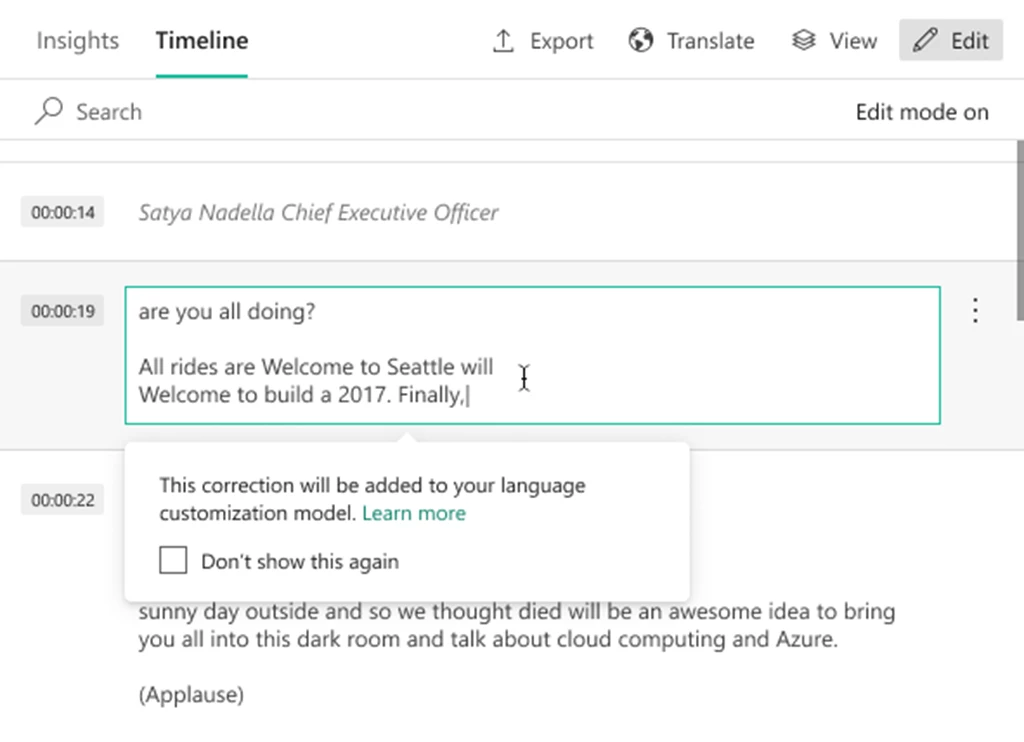
The changes are reflected in the transcript, captured in a text file From transcript edits, and automatically inserted to the language model used to index the video. If you were not already using a customer language model, the updates will be added to a new Account Adaptations language model created in the account.
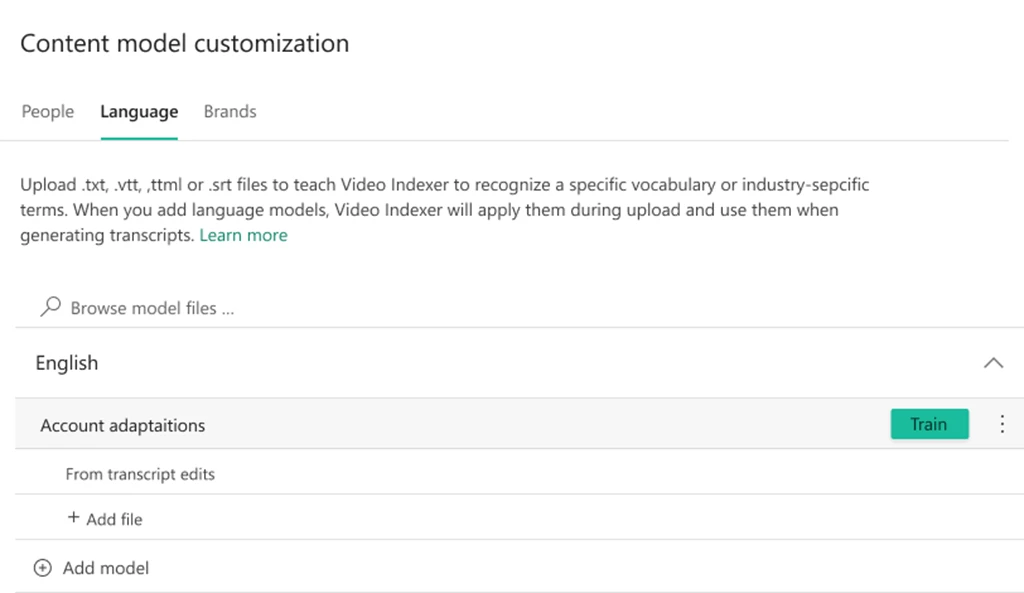
You can manage the language models in your account and see the From transcript edits files by going to the Language tab in the content model customization page of the VI website.
Once one of the From transcript edits files is opened, you can review the old and new sentences created by the manual updates, and the differences between them as shown below.
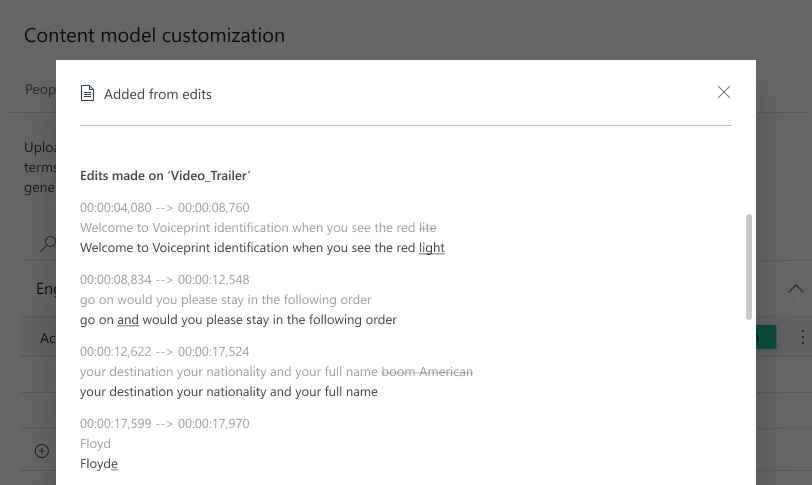
All that is left is to do is click on Train to update the language model with the latest changes. From that point on, these changes will be reflected in all future videos indexed using that model. Of course, you do not have to use the portal to train the model, the same can be done via the Video Indexer train language model API. Using the API can open new possibilities such as allowing you to automate a recurring training process to leverage ongoing updates.
There is also an update video transcript API that allows customers to update the entire transcript of a video in their account by uploading a VTT file that includes the updates. As a part of the new enhancements, when a customer uses this API, Video Indexer also adds the transcript that the customers uploaded to the relevant custom model automatically in order to leverage the content as training material. For example, calling update video transcript for a video titled “Godfather” will result with a new transcript file named “Godfather” in the custom language model that was used to index that video.
Improving your custom language model using closed caption files
Another quick and effective way to train your custom language model is to leverage existing closed captions files as training material. This can be done manually, by uploading a new closed caption file to an existing model in the portal, as shown in the image below, or by using the create language model and update language model APIs to upload a VTT, SRT or TTML files (similarly to what was done until now with TXT files.)
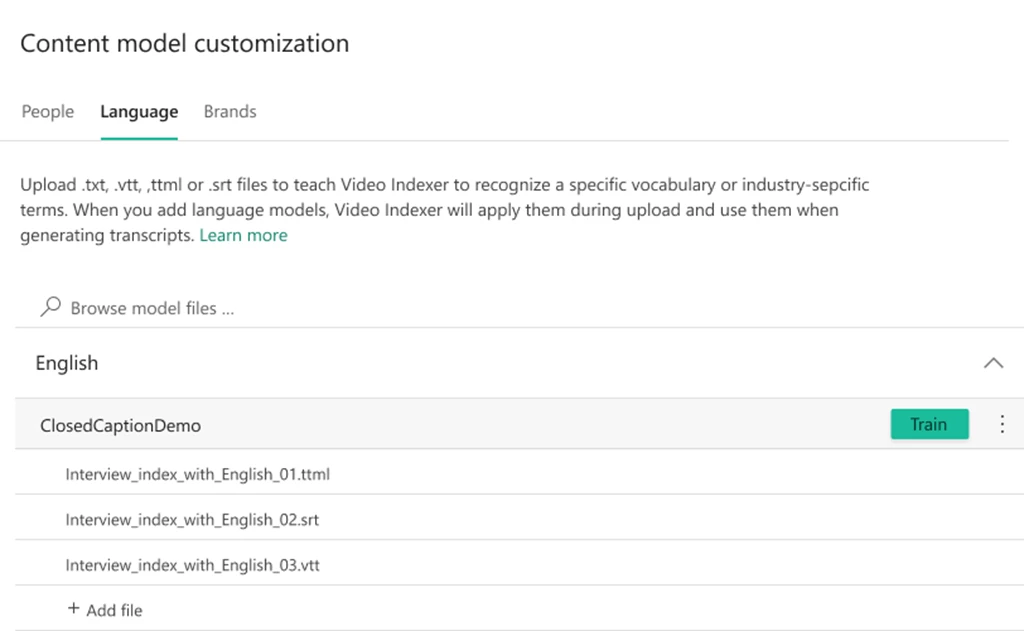
Once uploaded, VI cleans up all the metadata in the file and strip it down to the text itself. You can see the before and after results in the following table.
| Type | Before | After |
| VTT |
NOTE Confidence: 0.891635 | but you don’t like meetings before 10 AM. |
| SRT |
2 | but you don’t like meetings before 10 AM. |
| TTML |
but you don’t like meetings before 10 AM. | but you don’t like meetings before 10 AM. |
From that point on, all that is left to do is review the additions to the model and click Train or use the train language model API to update the model.
Next Steps
The new additions to the custom language models training flow make it easy for you and your organization to get more accurate transcription results easily and effortlessly. Now, it is up to you to add data to your custom language models, using any of the ways we have just discussed, to get more accurate results for your specific content next time you index your videos.
Have questions or feedback? We would love to hear from you! Use our UserVoice page to help us prioritize features, or email VISupport@Microsoft.com for any questions.