Customers love Azure Stream Analytics for its ease of analyzing streams of data in movement, with the ability to set up a running pipeline within five minutes. Optimizing throughput has always been a challenge when trying to achieve high performance in a scenario that can’t be fully parallelized. This occurs when you don’t control the partition key of the input stream, or your source “sprays” input across multiple partitions that later need to be merged. You can now use a new extension of Azure Stream Analytics SQL to specify the number of partitions of a stream when reshuffling the data. This new capability unlocks performance and aids in maximizing throughput in such scenarios.
The new extension of Azure Stream Analytics SQL includes a keyword INTO that allows you to specify the number of partitions for a stream when performing reshuffling using a PARTITION BY statement. This new keyword, and the functionality it provides, is a key feature to achieve high performance throughput for the above scenarios, as well as to better control the data streams after a shuffle. To learn more about what’s new in Azure Stream Analytics, please see, “Eight new features in Azure Stream Analytics.”
What is repartitioning?
Repartitioning, or reshuffling, is required when processing data on a stream that is not sharded according to the natural input scheme, such as the PartitionId in the Event Hubs case. This might happen when you don’t control the routing of the event generators or you need to scale out your flow due to resource constraints. After repartitioning, each shard can be processed independently of others, and progress without additional synchronization between the shards. This allows you to linearly scale out your streaming pipeline.
You can specify the number of partitions the stream should be split into by using a newly introduced keyword INTO after a PARTITION BY statement, with a strictly positive integer that indicates the partition count. Please see below for an example:
SELECT * INTO [output] FROM [input] PARTITION BY DeviceID INTO 10
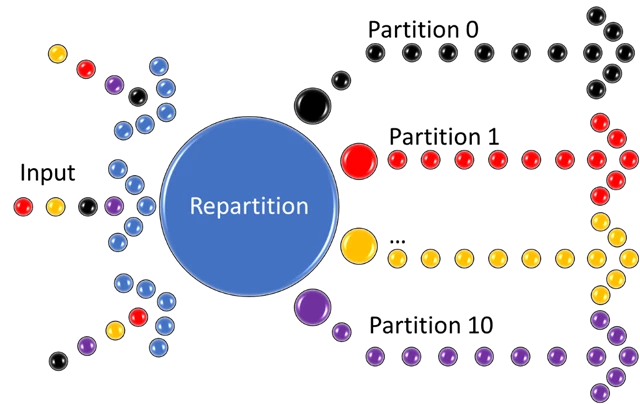
The query above will read from the input, regardless of it being naturally partitioned, and repartition the stream tenfold according to the DeviceID dimension and flush the data to output. Hashing of the dimension value (DeviceID) is used to determine which partition shall accept which substream. The data will be flushed independently for each partitioned stream, assuming the output supports partitioned writes, and either has 10 partitions, or can handle an arbitrary number of such.
A diagram of the data flow with the repartition in place is below:
Why and how to use repartitioning?
Use repartitioning to optimize the heavy parts of processing. It will process the data independently and simultaneously on disjoint subsets, even when the data is not naturally partitioned properly on input. The partitioning scheme is carried forward as long as the partition key stays the same.
Experiment and observe the resource utilization of your job to determine the exact number of partitions needed. Remember, Streaming Unit (SU) count, which is the unit of scale for Azure Stream Analytics, must be adjusted so the number of physical resources available to the job can fit the partitioned flow. In general, six SUs is a good number to assign to each partition. In case there are insufficient resources assigned to the job, the system will only apply the repartition if it benefits the job.
When joining two streams of data explicitly repartitioned, these streams must have the same partition key and partition count. The outcome is a stream that has the same partition scheme. Please see below for an example:
WITH step1 AS (SELECT * FROM [input1] PARTITION BY DeviceID INTO 10),
     step2 AS (SELECT * FROM [input2] PARTITION BY DeviceID INTO 10)

SELECT * INTO [output] FROM step1 PARTITION BY DeviceID UNION step2 PARTITION BY DeviceID
Specifying a mismatching number of partitions or partition key would yield a compilation error when creating the job.
When writing a partitioned stream to an output, it works best if the output scheme matches the stream scheme by key and count, so each substream can be flushed independently of others. Alternatively, the stream must be merged and possibly repartitioned again by a different scheme before flushing. This would add to the general latency of the processing, as well as the resource utilization and should be avoided.
For use cases with SQL output, use explicit repartitioning to match optimal partition count to maximize throughput. Since SQL works best with eight writers, repartitioning the flow to eight before flushing, or somewhere further upstream, may prove beneficial for the job’s performance. For more information, please refer to the documentation, “Azure Stream Analytics output to Azure SQL Database.”
Next steps
Get started with Azure Stream Analytics and have a look at our documentation to understand how to leverage query parallelization in Azure Stream Analytics.
For any question, join the conversation on Stack Overflow.