If you have an application on Azure Websites that requires the use of a certificate, you can upload your certificate to the certificates collection in Azure Websites and consume it in your web application from your site’s personal certificate store. This functionality is only available for dedicated sites (Basic and Standard tiers). The section below details the steps to get this working, but I would like to go quickly over why we need this and what has changed.
Certificates contain cryptographic keys that can be used by web applications for authentication, signing and other purposes and are usually considered security-sensitive. Previously, if your Azure Websites application needed to consume keys from a certificate, you would have to keep the certificate with it’s private key (usually in a .pfx container) in the App_Data directory of your application and consume it from this location. While this solution works, it has some drawbacks; you cannot keep the private key in the certificate hidden from the application code or the developer. Also, in the case your application is open source and it uses a certificate that needs to be a secret, or in the case where you want to isolate developers from access to the private key of a certificate, the App_Data option would also not be feasible.
Configuring Certificates for use in Azure Websites Applications
Here are the steps from both the Azure management portal and the Azure Websites REST API to configure and use certificates in Azure Websites applications.
1. Upload Certificate
a. Using Management portal
Login to the Azure management portal and select the website you want to upload your certificate to. Then select the configure option at the top.

Scroll down to the Certificates section and click on the upload a certificate button.

You will get a dialog box to browse to your .pfx file and specify the decryption password for your certificate.

After which you should see your certificate in the certificates section on the Azure management portal with the thumbprint listed that you will need in the next step.

b. Using REST API
You can use the Azure Resource Explorer to use the REST API to upload the certificate. For more information on Azure Resource Explorer refer to this blog.
2. Add app setting
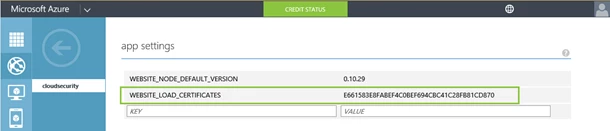
Adding an app setting named WEBSITE_LOAD_CERTIFICATES with its value set to the thumbprint of the certificate will make it accessible to your web application. You can have multiple comma-separated thumbprint values or can set this value to “ * “ (without quotes) in which case all your certificates will be loaded to your web applications personal certificate store.
To add this configuration for your website, go to the configure option for your website in the management portal, scroll down to the app settings section and add the setting as shown below with the thumbprint of the certificate you uploaded in the previous step.
The certificates will be installed to the Personal certificate store of the ApplicationPool Identity of the worker process.
3. Access from app
Here is a sample C# code you can use in your web application to access the client certificate in the example above using its thumbprint. Make sure you replace the thumbprint below with the one for your certificate.
using System;
using System.Security.Cryptography.X509Certificates;namespace UseCertificateInAzureWebsiteApp
{
  class Program
  {
    static void Main(string[] args)
    {
      X509Store certStore = new X509Store(StoreName.My, StoreLocation.CurrentUser);
      certStore.Open(OpenFlags.ReadOnly);
      X509Certificate2Collection certCollection = certStore.Certificates.Find(
                                 X509FindType.FindByThumbprint,
                                 // Replace below with your cert's thumbprint
                                 “E661583E8FABEF4C0BEF694CBC41C28FB81CD870”,
                                 false);
      // Get the first cert with the thumbprint
      if (certCollection.Count > 0)
      {
        X509Certificate2 cert = certCollection[0];
        // Use certificate
        Console.WriteLine(cert.FriendlyName);
      }
      certStore.Close();
    }
  }
}