We are happy to announce that Azure Load Balancer now supports configurable TCP Idle timeout for your Cloud Services and Virtual Machines. This feature can be configured using the Service Management API, PowerShell or the service model
Overview
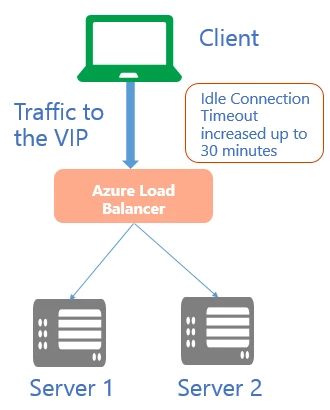
In its default configuration, Azure Load Balancer has an ‘idle timeout’ setting of 4 minutes.
This means that if you have a period of inactivity on your tcp or http sessions for more than the timeout value, there is no guarantee to have the connection maintained between the client and your service.
When the connection is closed, your client application will get an error message like “The underlying connection was closed: A connection that was expected to be kept alive was closed by the server”.
A common practice to keep the connection active for a longer period is to use TCP Keep-alive (You can find .NET examples here). Packets are sent when no activity is detected on the connection. By keeping on-going network activity, the idle timeout value is never hit and the connection is maintained for a long period.
While TCP Keep-alive works well for scenarios where battery is not a constraint, it is generally not a valid option for mobile applications. Using TCP Keep-alive from a mobile application will likely drain the device battery faster.
To support such scenarios, we have added support for a configurable idle timeout. You can now set it for a duration between 4 and 30 minutes. This setting works for inbound connections only.
Scenarios
Configure TCP timeout to an endpoint on a Virtual Machine via PowerShell or Service Management API
Configure TCP timeout for your Load-Balanced Endpoint Sets via PowerShell or Service Management API.
Configure TCP timeout for your Instance-Level Public IP
Configure TCP timeout for your Web/Worker roles via the service model.
PowerShell examples
Make sure to Download and install the latest Azure PowerShell
Configure TCP timeout for your Instance-Level Public IP to 15 minutes.
Set-AzurePublicIP –PublicIPName webip –VM MyVM -IdleTimeoutInMinutes 15
IdleTimeoutInMinutes is optional. If not set, the default timeout is 4 minutes. Its value can now be set between 4 and 30 minutes.
Set Idle Timeout when creating an Azure endpoint on a Virtual Machine
Get-AzureVM -ServiceName "mySvc" -Name "MyVM1" | Add-AzureEndpoint -Name "HttpIn" -Protocol "tcp" -PublicPort 80 -LocalPort 8080 -IdleTimeoutInMinutes 15| Update-AzureVM
Retrieve your idle timeout configuration
PS C:\> Get-AzureVM –ServiceName “MyService” –Name “MyVM” | Get-AzureEndpoint

VERBOSE: 6:43:50 PM - Completed Operation: Get Deployment

LBSetName : MyLoadBalancedSet

LocalPort : 80

Name : HTTP

Port : 80

Protocol : tcp

Vip : 65.52.xxx.xxx

ProbePath :

ProbePort : 80

ProbeProtocol : tcp

ProbeIntervalInSeconds : 15

ProbeTimeoutInSeconds : 31

EnableDirectServerReturn : False

Acl : {}

InternalLoadBalancerName :

IdleTimeoutInMinutes : 15
Set the TCP timeout on a load balanced endpoint set
If endpoints are part of a load balanced endpoint set, the TCP timeout must be set on the load balanced endpoint set
Set-AzureLoadBalancedEndpoint -ServiceName "MyService" -LBSetName "LBSet1" -Protocol tcp -LocalPort 80 -ProbeProtocolTCP -ProbePort 8080 -IdleTimeoutInMinutes 15
Cloud Service example
You can leverage the Azure SDK for .NET 2.4 to update your Cloud Service
Endpoint settings for Cloud Services are made in the .csdef. So, in order to update the TCP timeout for a Cloud Services deployment, a deployment upgrade is required. An exception is if the TCP timeout is only specified for a Public IP. Public IP settings are in the .cscfg, and they can be updated through deployment update and upgrade.
The .csdef changes for endpoint settings are:
The .cscfg changes for the timeout setting on Public IPs are:
API example
You can configure the TCP idle timeout using the service management API
Make sure to add the x-ms-version header is set to version 2014-06-01 or higher.
Update the configuration of the specified load-balanced input endpoints on all Virtual Machines in a deployment
Request
POST https://management.core.windows.net//services/hostedservices//deployments/
Response
endpoint-set-name

local-port-number

external-port-number


path-of-probe

port-assigned-to-probe

probe-protocol

interval-of-probe

timeout-for-probe


name-of-internal-loadbalancer

endpoint-protocol

15

enable-direct-server-return


priority-of-the-rule

permit-rule

subnet-of-the-rule

description-of-the-rule