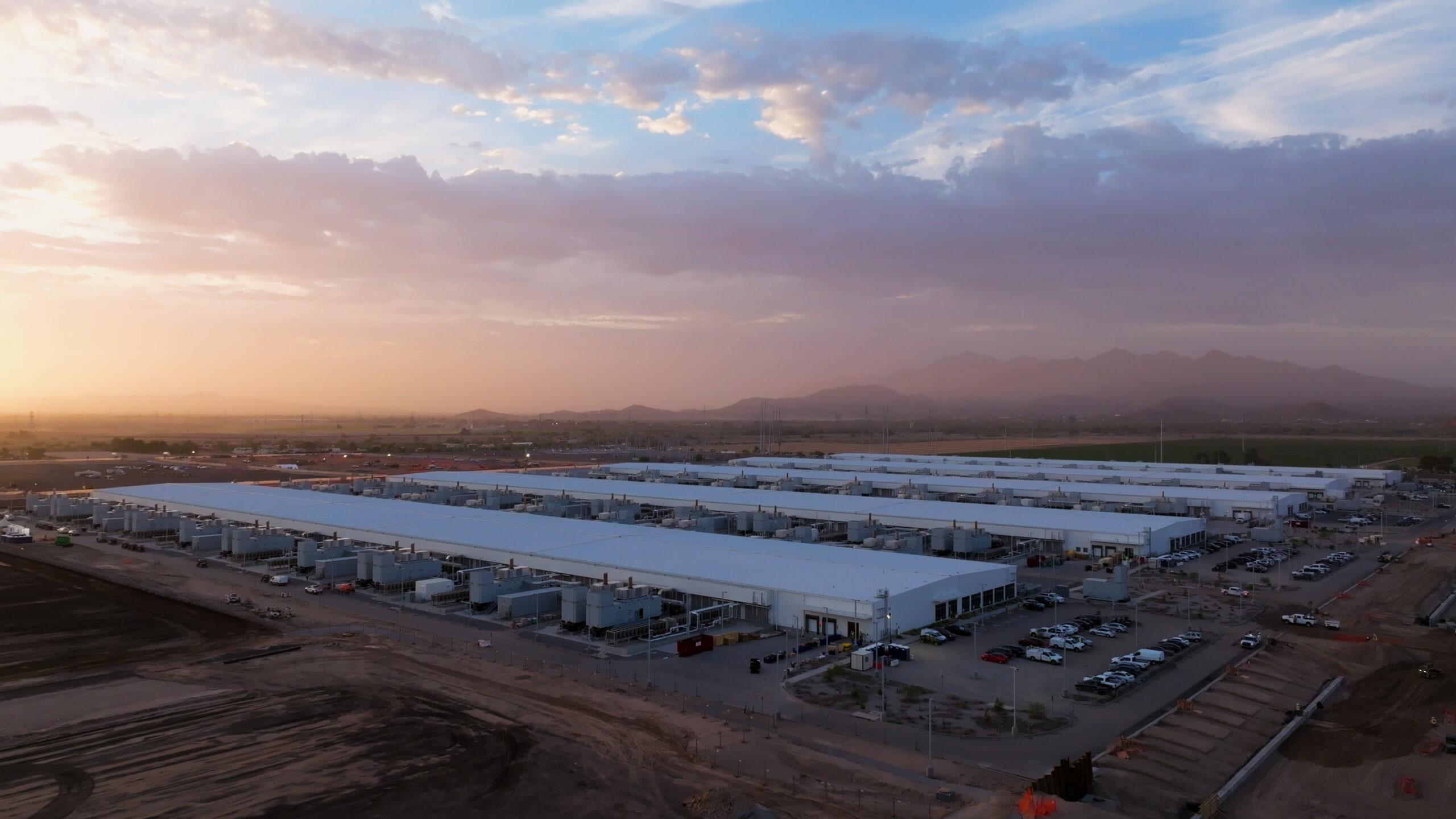
To meet customer demand, Azure is continuously expanding. We’ve been adding new Azure regions and introducing new capabilities. As a result, customers want to move their existing virtual machines (VMs) to new regions while adopting the latest capabilities. There are other factors that prompt our customers to relocate their VMs. For example, you may want to do that to increase SLAs.
In this blog, we will walk you through the steps you need to follow to move your VM as is or to increase availability, across regions.
Why do customers want to move their Azure IaaS Virtual Machines?
Some of the most common reasons that prompt our customers to move their virtual machines include:
• Geographical proximity: “I deployed my VM in region A and now region B, which is closer to my end users, has become available.”
• Mergers and acquisitions: “My organization was acquired, and the new management team wants to consolidate resources and subscriptions into one region.”
• Data sovereignty: “My organization is based in the UK with a large local customer base. As a result of Brexit, I need to move my Azure resources from various European regions to the UK in order to comply with local rules and regulations.”
• SLA requirements: “I deployed my VMs in Region A, and I would like to get a higher level of confidence regarding the availability of my services by moving my VMs into Availability Zones (AZ). Region A doesn’t have an AZ at the moment. I want to move my VMs to Region B, which is still within my latency limits and has Availability Zones.”
If you or your organization are going through any of these scenarios or you have a different reason to move your virtual machines, we’ve got you covered!
Move Azure VMs to a target region
For any of the scenarios outlined above, if you want to move your Azure Virtual Machines to a different region with the same configuration as the source region or increase your availability SLAs by moving your virtual machines into an Availability Zone, you can use Azure Site Recovery (ASR). We recommend taking the following steps to ensure a successful transition:
1. Verify prerequisites: To move your VMs to a target region, there are a few prerequisites we recommend you gather. This ensures that you’re creating a basic understanding of the Azure Site Recovery replication, the components involved, the support matrix, etc.
2. Prepare the source VMs: This involves ensuring the network connectivity of your VMs, certificates installed on your VMs, identifying the networking layout of your source and dependent components, etc.
3. Prepare the target region: You should have the necessary permissions to create resources in the target region including the resources that are not replicated by Site Recovery. For example, permissions for your subscriptions in the target region, available quota in the target region, Site Recovery’s ability to support replication across the source-target regional pair, pre-creation of load balancers, network security groups (NSGs), key vault, etc.
4. Copy data to the target region: Use Azure Site Recovery replication technology to copy data from the source VM to the target region.
5. Test the configuration: Once the replication is complete, test the configuration by performing a failover test to a non-production network.
6. Perform the move: Once you’re satisfied with the testing and you have verified the configuration, you can initiate the actual move to the target region.
7. Discard the resources in the source region: Clean up the resources in the source region and stop replication of data.

Move your Azure VM ‘as is’
If you intend to retain the same source configuration as the target region, you can do so with Azure Site Recovery. Your virtual machine configuration availability SLAs will be the same before and after the move. A single instance VM after the move will come back online as a single instance VM. VMs in an Availability Set after the move will be placed into an Availability Set, and VMs in an Availability Zone will be placed into an Availability Zone within the target region.
To learn more about the steps to move your VMs, refer to the documentation.
Move your Azure virtual machines to increase availability
As many of you know, we offer Availability Zones (AZs), a high availability offering that protects your applications and data from datacenter failures. AZs are unique physical locations within an Azure region and are equipped with independent power, cooling, and networking. To ensure resiliency, there’s a minimum of three separate zones in all enabled regions. With AZs, Azure offers 99.99 percent VM uptime SLA.
You can use Azure Site Recovery to move your single instance VM or VMs in an Availability Set into an Availability Zone, thereby achieving 99.99 percent uptime SLA. You can choose to place your single instance VM or VMs in an Availability Set into Availability Zones when you choose to enable the replication for your VM using Azure Site Recovery. Ideally each VM in an Availability Set should be spread across Availability Zones. The SLA for availability will be 99.99 percent once you complete the move operation. To learn more about the steps to move the VMs and improve your availability, refer to our documentation.
Azure natively provides you with the high availability and reliability you need for your mission-critical workloads, and you can choose to increase your SLAs and meet compliance requirements using the disaster recovery features provided by Azure Site Recovery. You can use the same service to increase availability of the virtual machines you have already deployed as described in this blog. Getting started with Azure Site Recovery is easy – simply check out the pricing information, and sign up for a free Azure trial. You can also visit the Azure Site Recovery forum on the Microsoft Developer Network (MSDN) for additional information and to engage with other customers.