Skip to main content Explore View all products (200+) Microsoft Foundry Azure Copilot GitHub Copilot Azure Kubernetes Service (AKS) Azure Cosmos DB Azure Database for PostgreSQL Azure Arc Microsoft Fabric Linux virtual machines in Azure Foundry Models Foundry Agent Service Foundry IQ Foundry Tools Foundry Control Plane Observability in Foundry Control Plane Azure OpenAI in Foundry Models Azure Speech in Foundry Tools Azure Machine Learning View all databases Azure Cosmos DB Azure DocumentDB Azure SQL Azure Database for PostgreSQL Azure Managed Redis Microsoft Fabric Azure Databricks Linux virtual machines in Azure Windows Server on Azure Azure Functions Azure Virtual Machine Scale Sets Azure API Management Azure Container Apps Azure Kubernetes Service (AKS) Azure Kubernetes Fleet Manager Azure Container Registry Azure Red Hat OpenShift Azure Container Instances Azure Container Storage Azure Arc Azure Local Microsoft Defender for Cloud Azure Monitor Microsoft Sentinel Azure Migrate View all solutions (40+) Cloud solutions for small and medium businesses Cloud migration and modernization center Data analytics for AI Azure Databases AI apps and agents Microsoft Marketplace Microsoft Sovereign Cloud AI apps and agents Responsible AI with Azure AI Infrastructure Data analytics for AI Machine learning operations (MLOps) Low-code application development on Azure Integration Services Serverless computing DevOps Migration and modernization center .NET apps migration Databases on Azure Linux on Azure Oracle on Azure SAP on the Microsoft Cloud Adaptive cloud High-performance computing (HPC) Infrastructure as a service (IaaS) Resiliency Azure Essentials Frontier Accelerate for Azure FinOps on Azure Microsoft Marketplace Azure pricing overview Create an Azure account Free Azure services Flexible purchase options Pricing calculator FinOps on Azure Maximize ROI from AI Azure savings plans Azure reservations Azure Hybrid Benefit Virtual Machines Azure SQL Microsoft Foundry Microsoft Fabric Azure Kubernetes Service (AKS) Microsoft Defender for Cloud View more Software Development Companies Microsoft Marketplace Find a partner Resources for Azure partners Get started with Azure Customer stories Analyst reports, white papers, and e-books Videos Learn more about cloud computing Documentation Explore Azure portal Developer resources Quickstart templates Resources for startups Developer community Students Azure for partners Blog Events and Webinars Learn Support Contact Sales Get started with Azure Sign in

Last October we released the preview of Azure Analysis Services, which is built on the proven analytics engine in Microsoft SQL Server Analysis Services. With Azure Analysis Services, you can host semantic data models in the cloud. Users in your organization can then connect to your data models using tools like Excel, Power BI, and many others to create reports and perform ad-hoc data analysis.

This blog will focus on everything you need to know to use Power BI Desktop to build reports against an Azure Analysis Services server and deploy that report to PowerBI.com.

Before getting started, you’ll need:

Connect and create

1. Open Power BI Desktop

2. Click Get Data.
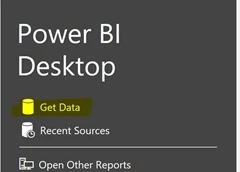
Power BI Desktop

3. Select Databases/SQL Server Analysis Services, and then click connect.
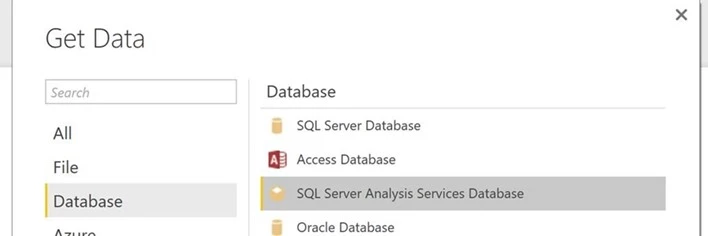
SQL Server Analysis Services Database

4. Enter your Azure AS server name, and click OK.
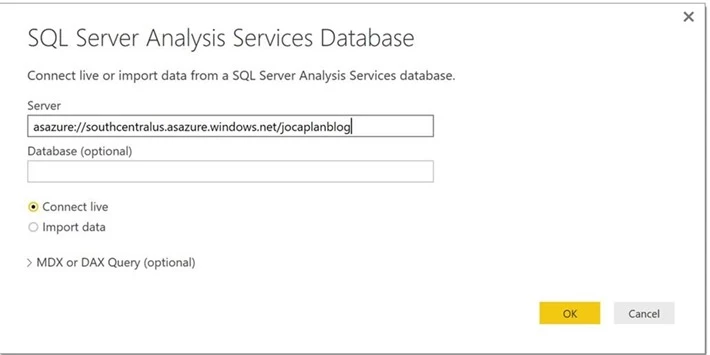
Connect Live Image

5. On the Navigator screen, select your model, and click OK.
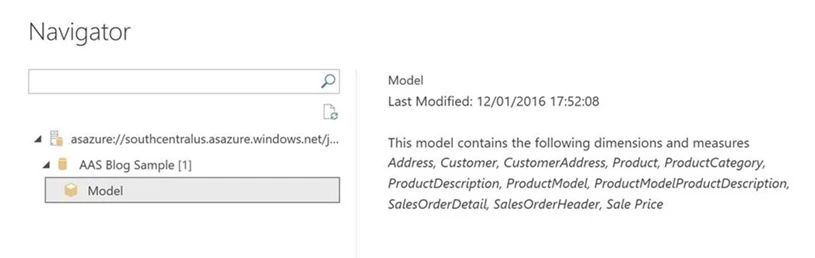
f3f5300d-3108-4e5b-9134-0eb06ac14d2f

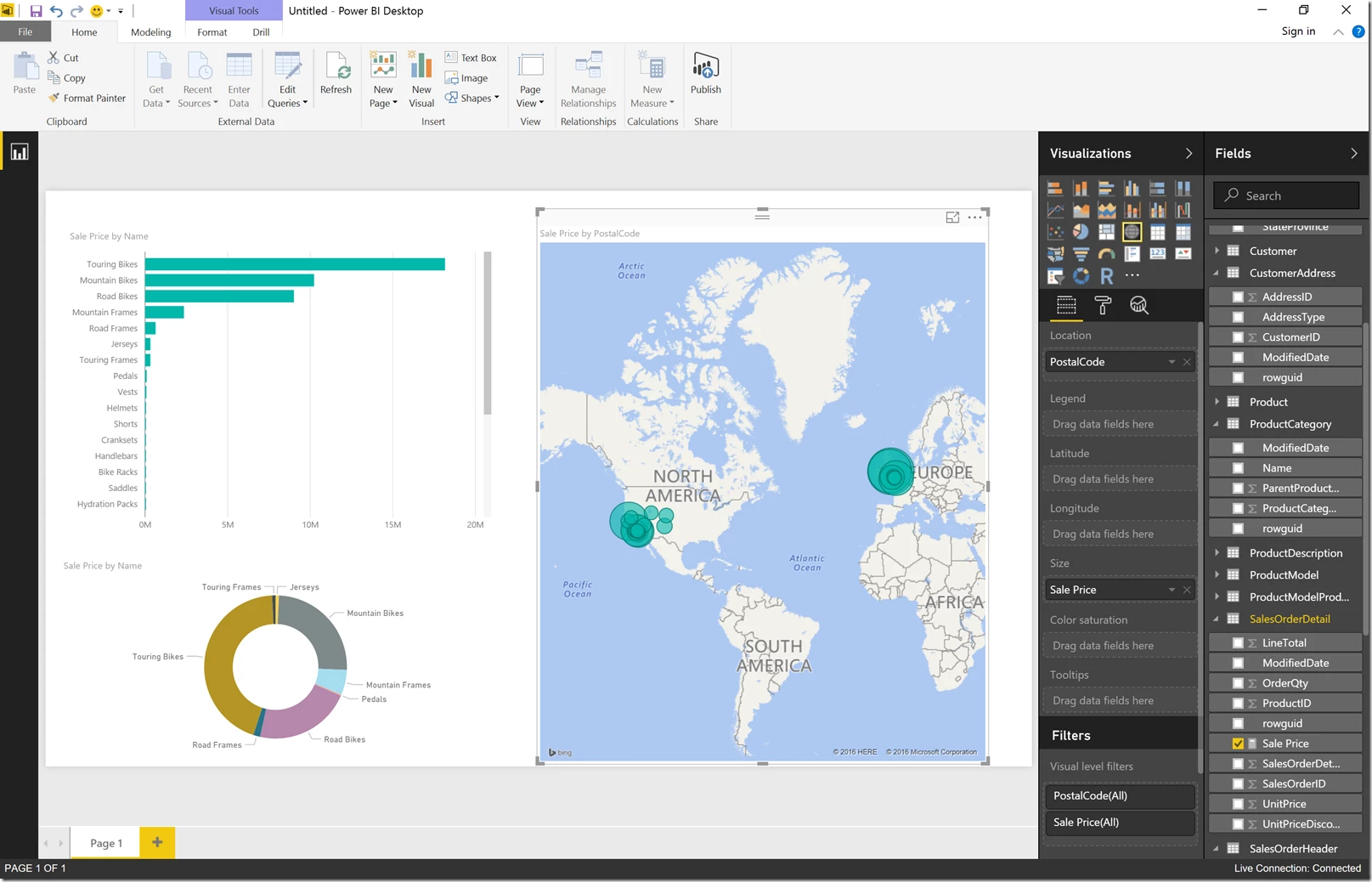
You’ll now see your model displayed in the field list on the side. You can drag and drop the different fields on to your page to build out interactive visuals.
image

Publish to Power BI

Now that you have created your report, you can publish to Power BI. When published, you can view it online and share it with others.

1. Save the report locally.

2. Click the Publish button on the Home tab.
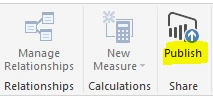
image

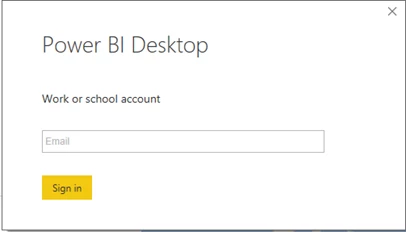
If this is your first time publishing, you’ll be asked to sign in to Power BI.
image

3. Select the destination for your report. This can either be your personal workspace or a group that you are a member of.

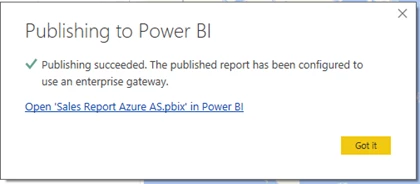
4. Once publishing is complete, click the blue link to view the report in Power BI.
image

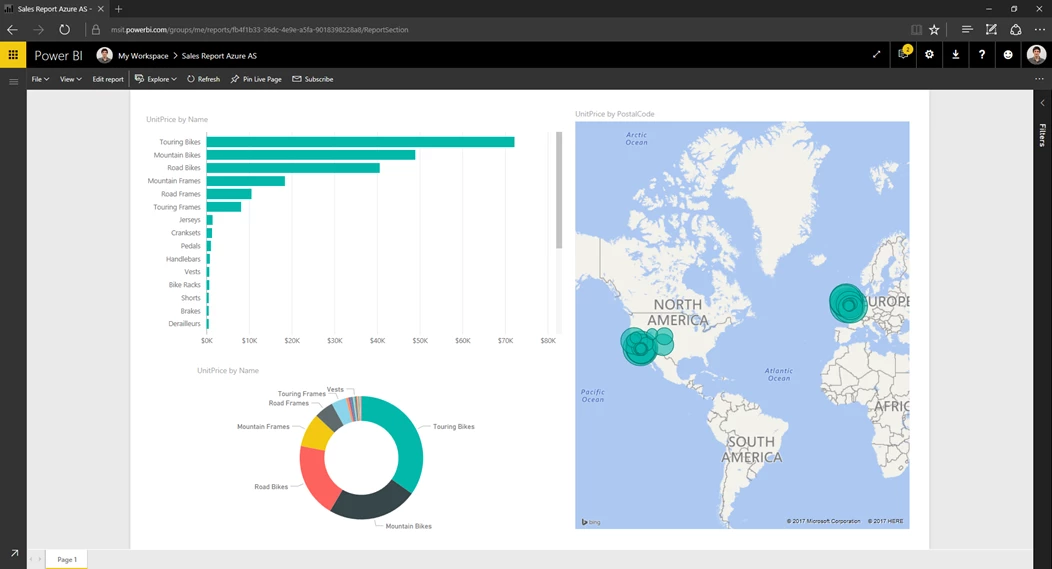
The report will open in Power BI and will automatically connect to your Azure Analysis Services server.
image

When connecting from Power BI to Azure Analysis Services, you are connected as your Azure Active Directory identity. This is the same identity as you would have used to sign into Power BI. If you share the report to any other users, you must ensure those users have access to your model.

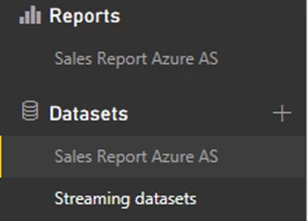
In addition to the report being published, you’ll also see a dataset that has been published.
image

You can use this dataset to create new reports against your Azure Analysis Services model directly in Power BI.

Learn more about Azure Analysis Services.

WE ARE MICROSOFT

Explore Microsoft Foundry

The future of AI starts here. Envision your next great AI app with the latest technologies. Get started with Azure.