Skip to main content Explore View all products (200+) Microsoft Foundry Azure Copilot GitHub Copilot Azure Kubernetes Service (AKS) Azure Cosmos DB Azure Database for PostgreSQL Azure Arc Microsoft Fabric Linux virtual machines in Azure Foundry Models Foundry Agent Service Foundry IQ Foundry Tools Foundry Control Plane Observability in Foundry Control Plane Azure OpenAI in Foundry Models Azure Speech in Foundry Tools Azure Machine Learning View all databases Azure Cosmos DB Azure DocumentDB Azure SQL Azure Database for PostgreSQL Azure Managed Redis Microsoft Fabric Azure Databricks Linux virtual machines in Azure Windows Server on Azure Azure Functions Azure Virtual Machine Scale Sets Azure API Management Azure Container Apps Azure Kubernetes Service (AKS) Azure Kubernetes Fleet Manager Azure Container Registry Azure Red Hat OpenShift Azure Container Instances Azure Container Storage Azure Arc Azure Local Microsoft Defender for Cloud Azure Monitor Microsoft Sentinel Azure Migrate View all solutions (40+) Cloud solutions for small and medium businesses Cloud migration and modernization center Data analytics for AI Azure Databases AI apps and agents Microsoft Marketplace Microsoft Sovereign Cloud AI apps and agents Responsible AI with Azure AI Infrastructure Data analytics for AI Machine learning operations (MLOps) Low-code application development on Azure Integration Services Serverless computing DevOps Migration and modernization center .NET apps migration Databases on Azure Linux on Azure Oracle on Azure SAP on the Microsoft Cloud Adaptive cloud High-performance computing (HPC) Infrastructure as a service (IaaS) Resiliency Azure Essentials Frontier Accelerate for Azure FinOps on Azure Microsoft Marketplace Azure pricing overview Create an Azure account Free Azure services Flexible purchase options Pricing calculator FinOps on Azure Maximize ROI from AI Azure savings plans Azure reservations Azure Hybrid Benefit Virtual Machines Azure SQL Microsoft Foundry Microsoft Fabric Azure Kubernetes Service (AKS) Microsoft Defender for Cloud View more Software Development Companies Microsoft Marketplace Find a partner Resources for Azure partners Get started with Azure Customer stories Analyst reports, white papers, and e-books Videos Learn more about cloud computing Documentation Explore Azure portal Developer resources Quickstart templates Resources for startups Developer community Students Azure for partners Blog Events and Webinars Learn Support Contact Sales Get started with Azure Sign in

As a lab owner, you now have the option to configure all your lab virtual machines (VMs) to be created in a single resource group. This feature helps in the following scenarios:

  • Have fewer resource groups created by labs in your subscription.
  • Have your labs operate within a fixed set of resource groups that you configure.
  • Work around restrictions and approvals required for creating resource groups within your Azure subscription.
  • Consolidate all your lab resources within a single resource group to simplify tracking those resources and applying policies to manage resources at the resource group level

This article will discuss how you can use this feature through the DevTest Lab Azure portal or using automation.

Using Azure DevTest Lab portal

As a lab owner you can configure this setting for your lab by going to Configuration and policies, Lab settings, and Resource Group allocation for virtual machines.
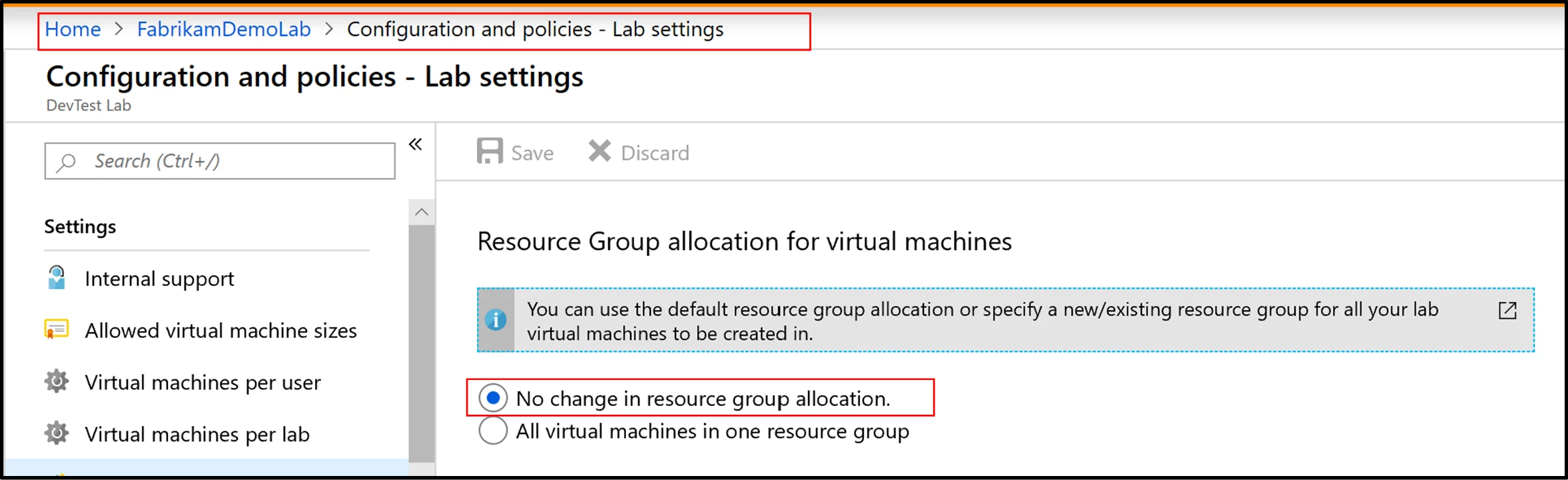
Screenshot of Resource Group allocation for virtual machines

The setting will be defaulted to the existing behavior i.e. no change in the resource group allocation. You can choose to continue with the existing behavior or select the option to have all machines created in one resource group going forward. If you select the latter, you have two options:

1. Select an existing resource group from a pre-populated dropdown of resource groups you have access to.
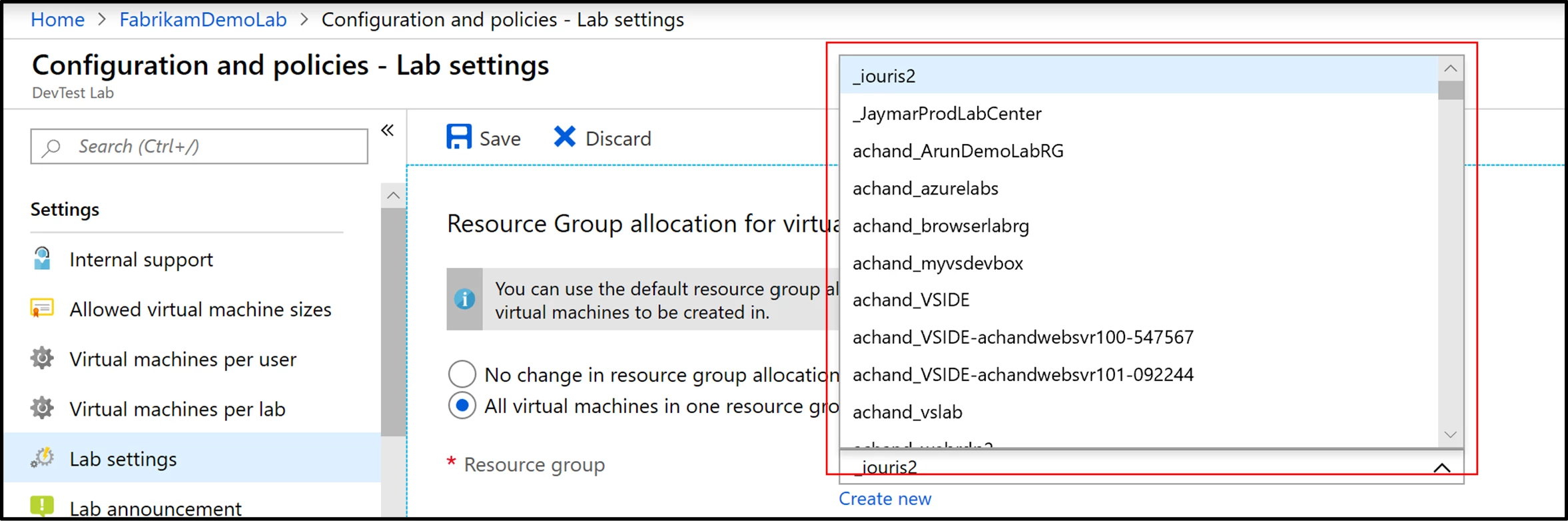
Screenshot of exsiting resource groups from a pre-populated dropdown menu

2. Enter a new resource group that the service will create on your behalf for virtual machines to be created in going forward.
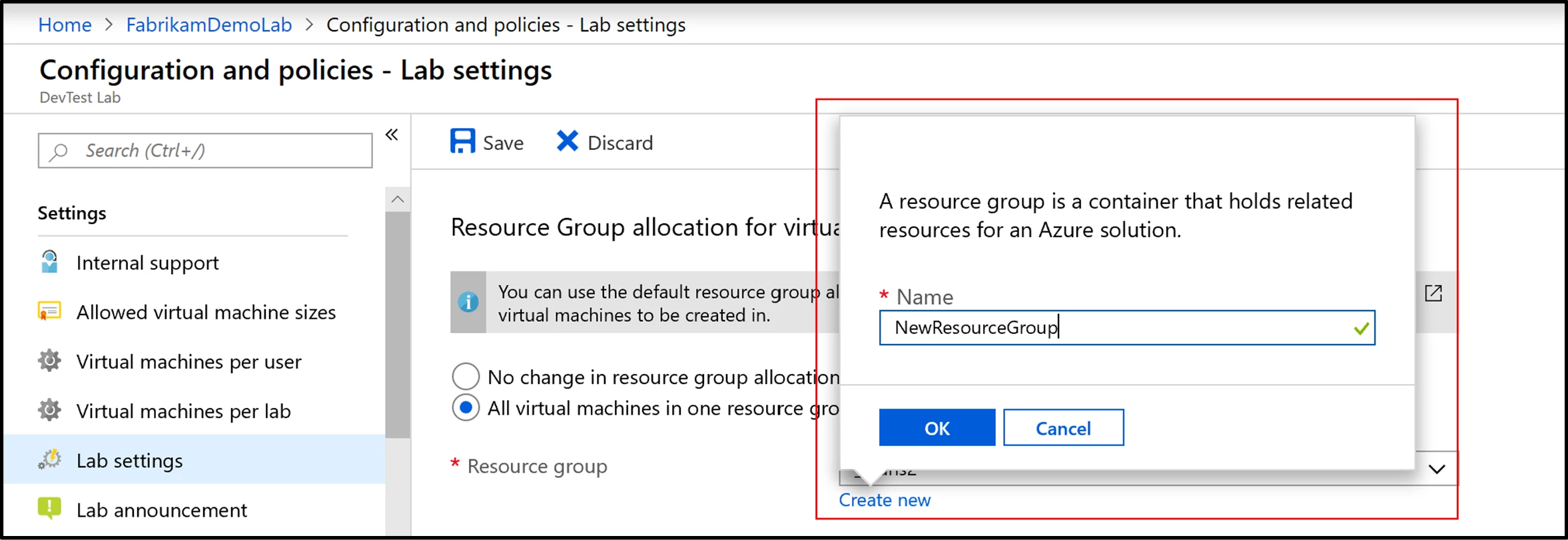
Screenshot of entering a new resource group

Using automation

You can also use a script to either specify a new or existing resource group within your Azure subscription for all your lab VMs to be created in. Now let’s walk through the options you have as a lab owner while using this API:

  • You can choose the lab’s resource group for all VMs to be created in going forward.
  • You can choose an existing resource group other than the lab’s resource group for all VMs to be created in going forward.
  • You can enter a new resource group name for all VMs to be created in going forward.
  • You can also continue with the existing behavior.

This setting will apply to new VMs created in the lab. This means older VMs in your lab that are created in their own resource groups will continue to remain unaffected. ARM environments created in your lab will continue to remain in their own resource groups and will not be affected by any option you select while working with this feature.

You can also learn more about how to use this feature along with an example script by visiting our documentation, “Specify a resource group for lab virtual machines in Azure DevTest Labs.” We hope you find this feature useful!

Got an idea to make it work better for you? Submit your feedback and ideas, or vote for others at Azure DevTest Labs UserVoice forum. Have a question? Check out the answers or ask a new one at our MSDN forum.


WE ARE MICROSOFT

Explore Microsoft Foundry

The future of AI starts here. Envision your next great AI app with the latest technologies. Get started with Azure.