Today at the SQL PASS Summit, Microsoft announced the scale out feature for Azure Analysis Services. With scale-out, client queries can be distributed among multiple query replicas in a query pool, reducing response times during high query workloads. You can also separate processing from the query pool, ensuring client queries are not adversely affected by processing operations. With Azure Analysis Services, we have made setting up scale-out as easy as possible. Scale-out can be configured in Azure portal, PowerShell (coming soon), or by using the Analysis Services REST API.
How it works
In a typical server deployment, one server serves as both processing server and query server. If the number of client queries against models on your server exceeds the Query Processing Units (QPU) for your server’s plan, or model processing occurs at the same time as high query workloads, performance can decrease.
With scale-out, you can create a query pool with up to seven additional query replicas (eight total, including your server). You can scale the number of query replicas to meet QPU demands at critical times and you can separate a processing server from the query pool at any time.
Regardless of the number of query replicas you have in a query pool, processing workloads are not distributed among query replicas. A single server serves as the processing server. Query replicas serve only queries against the models synchronized between each replica in the query pool. When processing operations are completed, a synchronization must be performed between the processing server and the query replica servers. When automating processing operations, it’s important to configure a synchronization operation upon successful completion of processing operations.
Note: Scale-out does not increase the amount of available memory for your server. To increase memory, you need to upgrade your plan.
Monitor QPU usage
To determine if scale-out for your server is necessary, monitor your server in Azure portal by using Metrics. If your QPU regularly maxes out, it means the number of queries against your models is exceeding the QPU limit for your plan. The query pool job queue length metric also increases when the number of queries in the query thread pool queue exceeds available QPU. To learn more, please read Monitor server metrics.
Configure scale-out
- In the portal, click Scale-out. Use the slider to select the number of query replica servers. The number of replicas you choose is in addition to your existing server.
- In Separate the processing server from the querying pool, select yes to exclude your processing server from query servers.
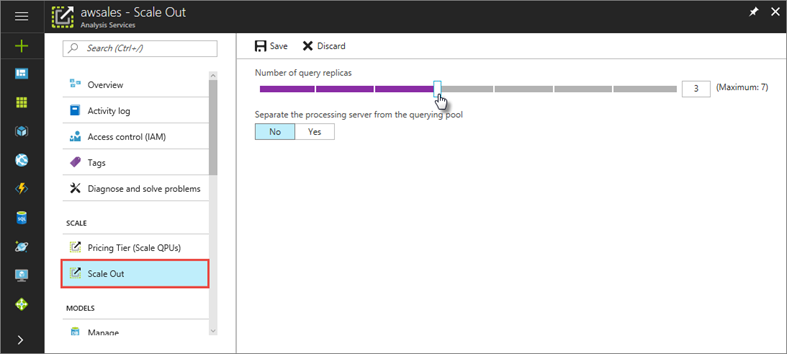
- Click Save to provision your new query replica servers.
Tabular models on your primary server are synchronized with the replica servers. When synchronization is complete, the query pool begins distributing incoming queries among the replica servers.
Note: You can also change these settings programmatically using Azure ARM.
Synchronization
When you provision new query replicas, Azure Analysis Services automatically replicates your models across all replicas. You can also perform a manual synchronization. When you process your models, you should perform a synchronization so updates are synchronized among query replicas.
In Overview, click the synchronize icon on the right of a model.
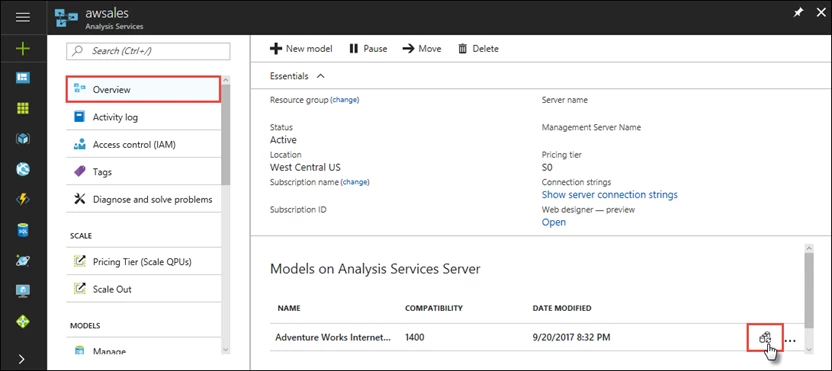
Synchronization can also be triggered programmatically by using the Azure Analysis Services REST API.
Connections
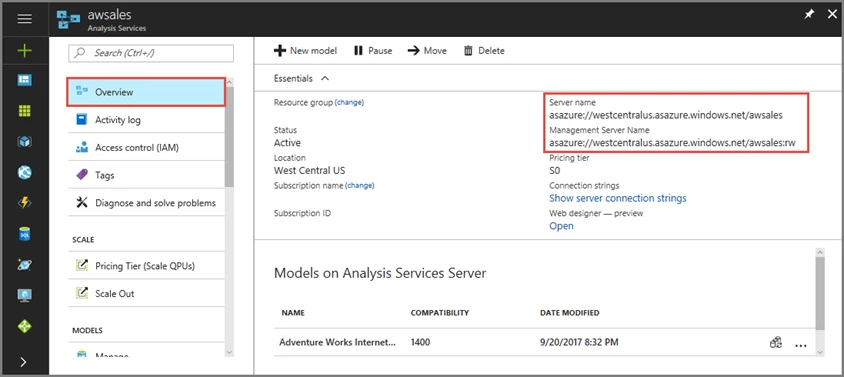
On your server’s overview page, there are two server names. Once you configure scale-out for a server, you will need to specify the appropriate server name depending on the connection type.
For end-user client connections like Power BI Desktop, Excel and custom apps, use Server name.
For SSMS, SSDT, and connection strings in PowerShell, Azure Function apps, and AMO, use Management server name. The management server name includes a special :rw (read-write) qualifier.
Submit your own ideas for features on our feedback forum. Learn more about Azure Analysis Services and the scale-out.