An ever-increasing number of enterprises, even as they adopt a hybrid IT strategy, continue to retain mission-critical data on-premises and look towards the public cloud as an effective offsite for their backups. Azure Backup—Azure’s built-in data-protection solution, provides a simple, secure, and cost-effective mechanism to backup these data-assets over the network to Azure, while eliminating on-premises backup infrastructure. After the initial full backup of data, Azure Backup transfers only incremental changes in the data, thereby delivering continued savings on both network and storage.
With the exponential growth in critical enterprise data, the initial full backups are reaching terabyte scale. Transferring these large full-backups over the network, especially in high-latency network environments or remote offices, may take weeks or even months. Our customers are looking for more efficient ways beyond fast networks to transfer these large initial backups to Azure. Microsoft Azure Data Box solves the problem of transferring large data sets to Azure by enabling the “offline” transfer of data using secure, portable, and easy-to-get Microsoft appliances.
Announcing the preview of Azure Offline Backup with Azure Data Box
Today, we are thrilled to add the power of Azure Data Box to Azure Backup, and announce the preview program for offline initial backup of large datasets using Azure Data Box! With this preview, customers will be able to use Azure Data Box with Azure Backup to seed large initial backups (up to 80 TB per server) offline to an Azure Recovery Services Vault. Subsequent backups will take place over the network.
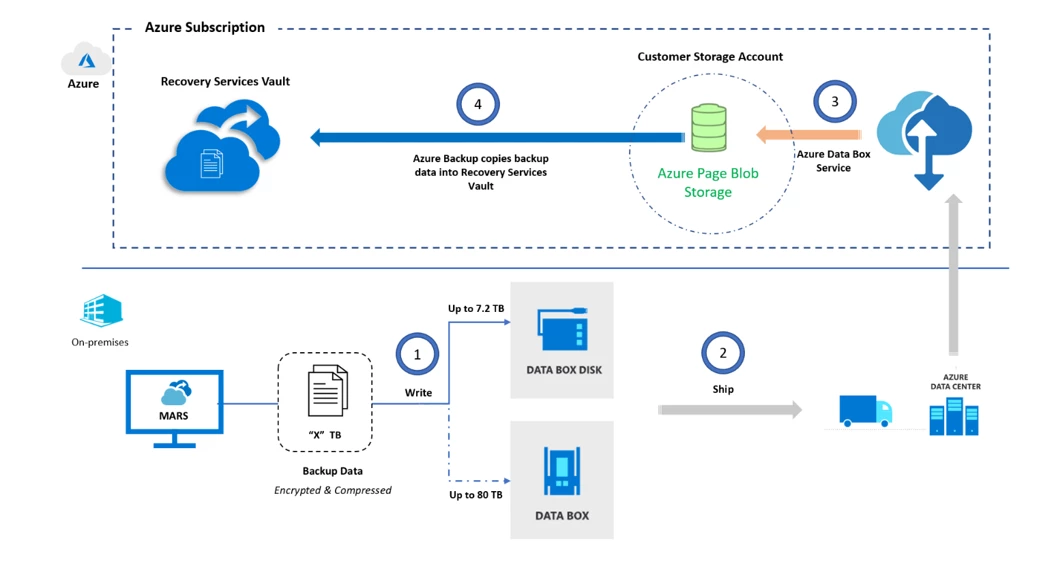
This preview is currently available to the customers of Microsoft Azure Recovery Services agent and is a much-awaited addition to the existing support for offline backup using Azure Import/Export Services.
Key benefits
The Azure Data Box addition to Azure Backup delivers core benefits of the Azure Data Box service while offering key advantages over the Azure Import/Export based offline backup.
- Simple—No need to procure your own Azure-compatible disks or connectors as with the Azure Import based offline backup. Simply order and receive one or more Data Box appliances from your Azure subscription, plug-in, fill with backup data, return to Azure, and track all of it on the Azure portal.
- Built-in—The Azure Data Box based offline backup experience is built-into the Recovery Services agent, so you can easily discover and detect your received Azure Data Box appliances, transfer backup data, and track the completion of the initial backup directly from the agent.
- Secure—Azure Data Box is a tamper-resistant appliance that comes with ruggedized casing to handle bumps and bruises during transport and supports 256-bit AES encryption on your data.
- Efficient—Get freedom from provisioning temporary storage (staging locations) or use of additional tools to prepare disks and copy data, as in the Azure Import based offline backup. Azure Backup directly copies backup data to Azure Data Box, delivering savings on storage and time, and eliminating additional copy tools.
Getting started
Seeding your large initial backups using Azure Backup and Azure Data Box involves the following high-level steps.
- Order and receive your Azure Data Box based on the amount of data you want to backup from a server. Order an Azure Data Box Disk if you want to backup less than 7.2 TB of data. Order an Azure Data Box to backup up to 80 TB of data.
- Install and register the latest Recovery Services agent to an Azure Recovery Services Vault.
- Select the “Transfer using Microsoft Azure Data Box disks” option for offline backup as part of scheduling your backups with the Recovery Services agent.
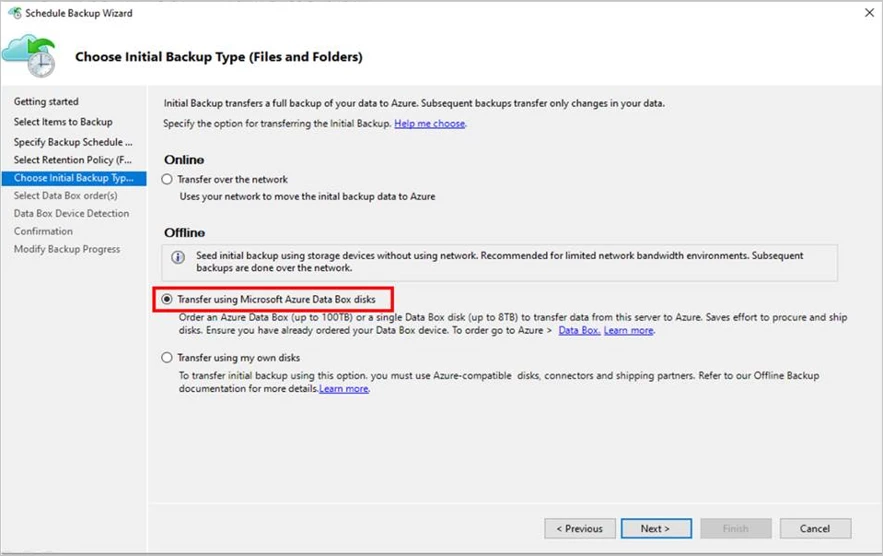
- Trigger Backup to Azure Data Box from the Recovery Services Agent.
- Return Azure Data Box to Azure.
Azure Data Box and Azure Backup will automatically upload the data to the Azure Recovery Services Vault. Refer to this article for a detailed overview of pre-requisites and steps to take advantage of Azure Data Box when seeding your initial backup offline with Azure Backup.
Offline backup with Azure Data Box on Data Protection Manager and Azure Backup Server
If you are using System Center Data Protection Manager or Microsoft Azure Backup Server and are interested in seeding large initial backups using Azure Data Box, drop us a line at systemcenterfeedback@microsoft.com for access to early previews.
Related links and additional content
- Jump right into using Offline Backup with Azure Data Box.
- Learn more about Offline backup options with Azure Backup.
- New to Azure Backup? Sign up for a free Azure trial subscription.
- Review whether you need to use online or offline mechanisms to send backup data to Azure.
- Need help? Reach out to Azure Backup forum for support or browse Azure Backup documentation.
- Follow us on Twitter @AzureBackup for the latest news and updates.