At Microsoft Ignite, we announced new Azure Migrate assessment capabilities that further simplify migration planning. In this post, we will demonstrate how to import servers into Azure Migrate Server Assessment through a CSV upload. Virtual servers of any hypervisor or cloud as well as physical servers can be assessed. You can get started with the CSV import feature by creating an Azure Migrate project or using your existing project.
Previously, Server Assessment required setting up an appliance in customer premises to perform discovery of VMware, Hyper-V virtual machines (VMs), and physical servers. We now also support importing and assessing servers without deploying an appliance. Import-based assessments provide support for Server Assessment features like Azure suitability analysis, migration cost planning, and performance-based rightsizing. The import-based assessment is helpful in the initial stages of migration planning, when you may not be able to deploy the appliance due to pending organizational or security constraints that prevent you from sending data to Azure.
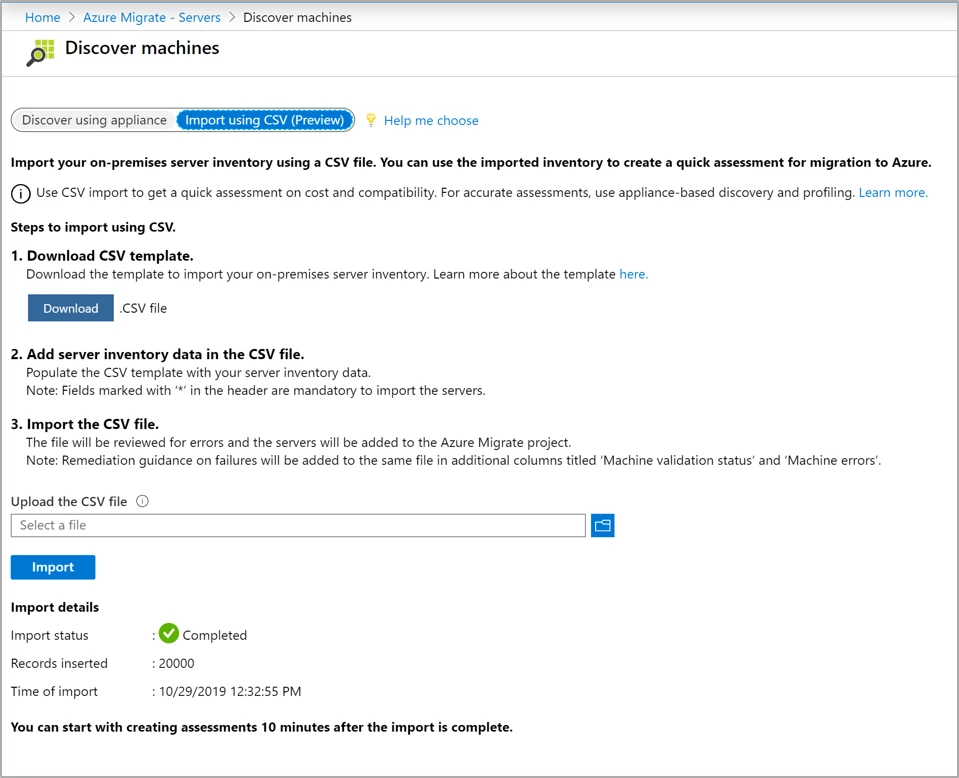
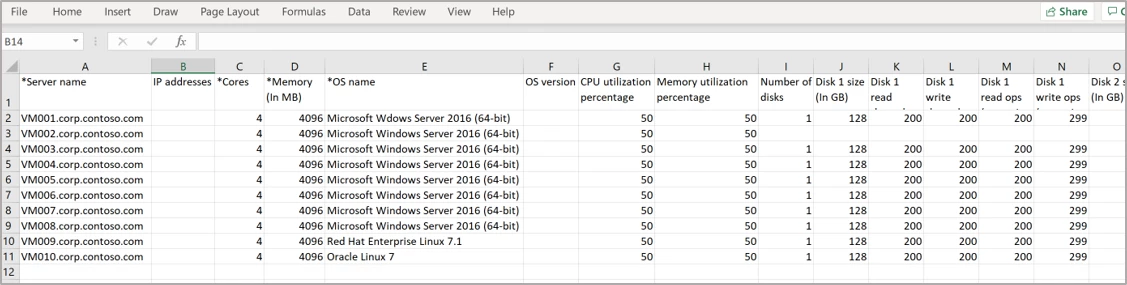
Importing your servers is easy. Simply upload the server inventory in a CSV file as per the template provided by Azure Migrate. Only four data points are mandatory — server name, number of cores, size of memory, and operating system name. While you can run the assessment with this minimal information, we recommend you provide disk data as well to avail disk sizing in assessments.
Azure suitability analysis
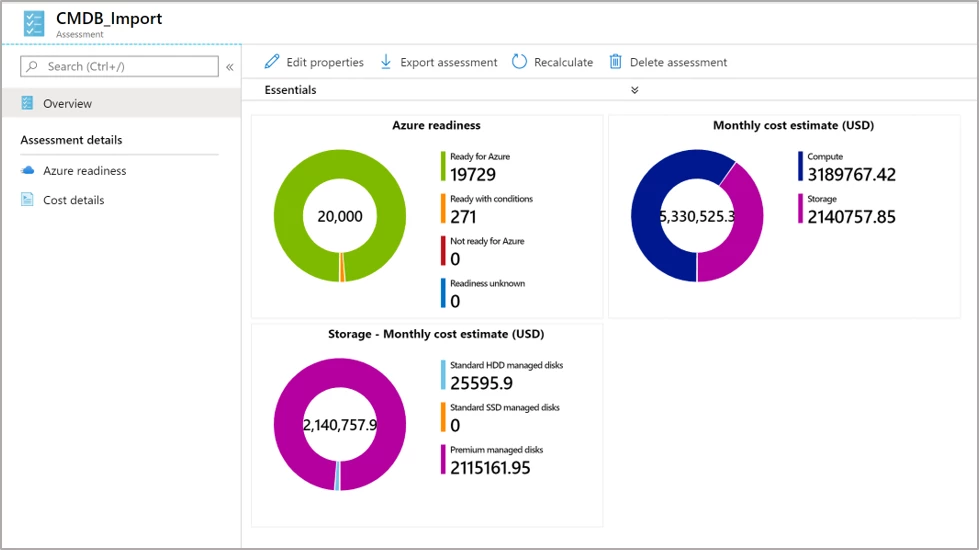
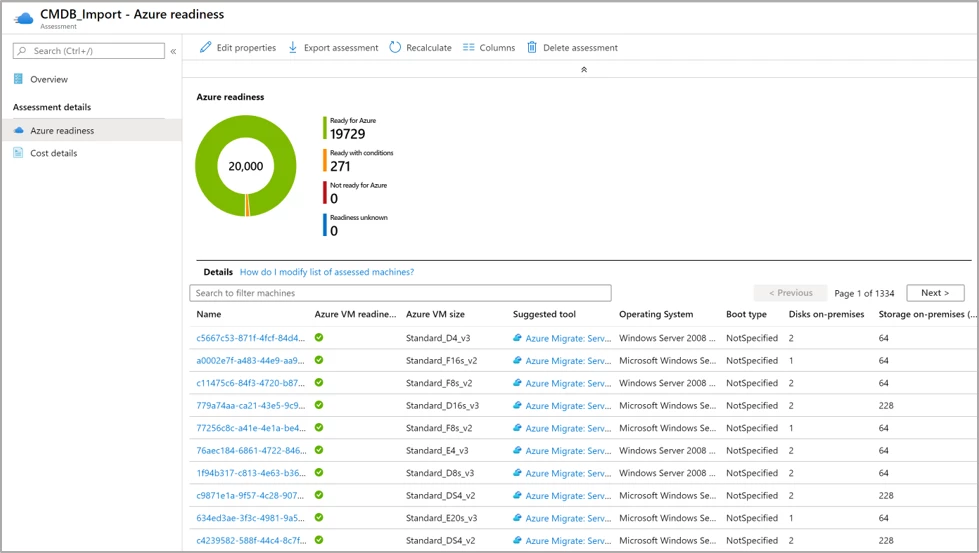
The assessment determines whether a given server can be migrated as-is to Azure. Azure support is checked for each server discovered; if it is found that a server is not ready to be migrated, remediation guidance is automatically provided. You can customize your assessment by changing its properties, and regenerate the assessment reports. You can also generate an assessment report by choosing a VM series of your choice and specify the uptime of the workloads you will run in Azure.
Cost estimation and sizing
Assessment reports provide detailed cost estimates. You can optimize on cost using performance-based rightsizing assessments; the performance utilization value you specify of your on-premises server is taken into consideration to recommend an appropriate Azure Virtual Machine and disk SKU. This helps to optimize and right-size on cost as you migrate servers that might be over-provisioned in your on-premises data center. You can apply subscription offers and Reserved Instance pricing on the cost estimates
Assess your imported servers in four simple steps
- Create an Azure Migrate project and add the Server Assessment solution to the project. If you already have a project, you do not need to create a new one. Download the CSV template for importing servers.
- Gather the inventory data from a configuration management database (CMDB), or from your vCenter server, or Hyper-V environments. Convert the data into the format of the Azure Migrate CSV template.
- Import the servers into Azure Migrate by uploading the server inventory in a CSV file as per the template.
- Once you have successfully imported the servers, create assessments and review the assessment reports.
When you are ready to deploy an appliance, you can leverage the performance history gathered by the appliance for more accurate sizing, as well as plan migration phases using dependency analysis.
Get started right away by creating an Azure Migrate project. Note that the inventory metadata uploaded is persisted in the geography you select while creating the project. You can select a geography of your choice. Server Assessment is available today in Asia Pacific, Australia, Brazil, Canada, Europe, France, India, Japan, Korea, United Kingdom, and United States geographies.
In the upcoming blog, we will talk about application discovery and agentless dependency analysis.
Resources to get started
- Read this tutorial on how to import and assess servers using Azure Migrate Server Assessment.
- Read these tutorials on how to assess Hyper-V, VMware, or any physical or virtual servers using the appliance in Server Assessment.