We’ve made improvements to SQL Data Sync including PowerShell programmability, better security and resilience, enhanced monitoring and troubleshooting, and availability in more regions. As part of these changes, SQL Data Sync will only be available in the Azure portal beginning July 1, 2017. This blog post will cover the steps current active users will use to migrate to the new service. This only applies to customers that have used their Sync Groups after March 1, 2017.
For details on the improvements, please see our Data Sync Update blog post. If you are a new user that would like to try Data Sync, look at this blog post on Getting Started with Data Sync.
Overview
Starting June 1, 2017, existing Sync Groups will begin migrating. Existing Sync Groups will continue to work until the migration is completed. Please see the section below that fits your case for details.
A Sync Database will be created for each region where you have a Sync Group to store metadata and logs. You will own this database. This will be created in the same server as your Hub Database.
On June 15, 2017, Data Sync will be available to all customers in the new Azure portal. If you would like early access please email us with your subscription ID.
On July 1, 2017, SQL Data Sync will be retired from the Azure classic portal. After July 1, 2017, the original service will continue to run, but you won’t be able to make any changes or have portal access until you complete your migration.
On September 1, 2017, the original SQL Data Sync service will be retired. If you haven’t migrated your sync groups by September 1, 2017, your Sync Group will be deleted.
What you need to do
- Plan and prepare for your migration. You will receive emails in the coming weeks with your migration date and instructions.
- Do not make topologies in the old portal after your migration date. This date will be sent to the subscription email of each Sync Group being migrated.
- If you have any on-premises member databases install and configure the local agent. You need one on each machine or VM hosting a member database. Detailed steps are included below.
- Test for successful migration. Do this by clicking “Sync Now” in the Azure SQL Data Sync portal.
- After verifying migration, disable scheduled sync in the old service. You must do this before making any topology changes or this could cause errors with Data Sync. Do not drop your sync groups in the old service.
After completing these steps you can use Data Sync in the new portal.
Installing and configuring local agent
Your local agent from the original service can remain running and installed while you do the following steps. You can download the local agent.
You will need to:
1. Download and install the local agent. This local agent is specific to Data Sync 2.0. This agent and the old one are not interchangeable. Install the local agent in the default location on every machine which hosts a member database.
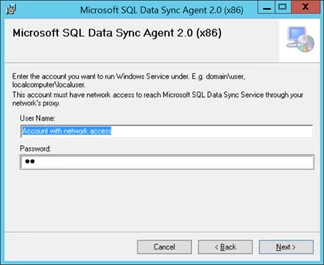
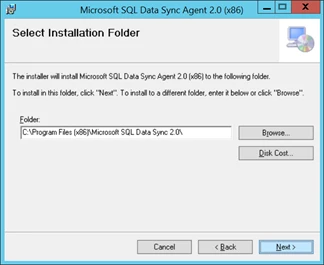
2. Get the agent key. You can find this in the new Azure SQL Data Sync portal after your migration date. To do this select the Sync Agent under the “Sync to other databases” tab for the Hub database. This will launch a blade that will allow you to generate a key. Note that this key needs to be from the new Azure portal.
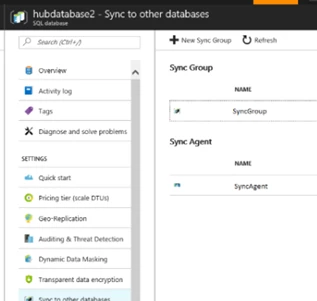
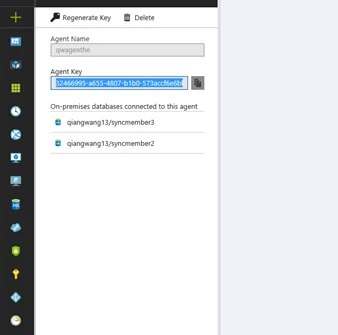
3. Click the “Submit Agent Key” button and connect to the Sync Group and Sync Database. You’ll need to enter credentials for your Sync Database. This is the same as your credentials for the server on which the Sync Database is located.
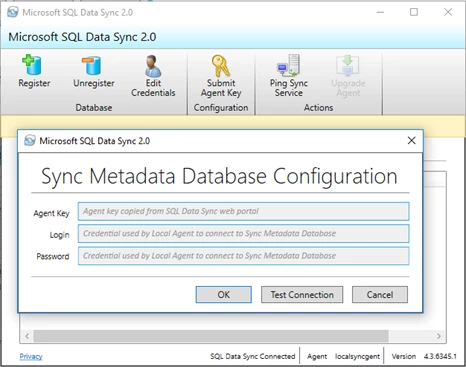
4. Update your credentials.
a. Click the edit credentials button and update the information. Use this method if you only have a few on premises databases.
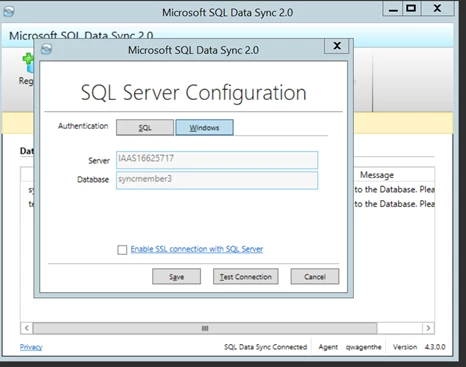
Alternate method: If you have a lot of on-premise members or do not have the credentials do the following:
1. Follow step 1 as shown above.
2. Follow step 2 as shown above.
3. Copy the configuration file from the original service.
a. Copy the “AgentConfigData.xml” from the original service. The path will be as follows: Microsoft SQL Data SyncdataAgentConfigData.xml
b. Put the copy of that file in the new Data Sync folder. Please rename the file AgentConfigData_Old to avoid confusion and potential issues with the old service. The path will be as follows: Microsoft SQL Data Sync 2.0dataAgentConfigData_Old.xml
4. Follow step 3 as shown above.
Related links
If you have any feedback on Azure SQL Data Sync service, we’d love to hear from you! To get the latest update of Azure SQL Data Sync, please join the SQL Advisor Yammer Group or follow us @AzureSQLDB on Twitter.