Editor’s Note: This post comes from the Windows Azure Monitoring Team.
Today we are excited to announce the ability to configure threshold based alerts on monitoring metrics within the Azure. This feature will be available for compute services (cloud services, VM, websites and mobiles services). Alert provide you the ability to get notified of active or impending issues within your application. With this feature you will be able to create alert rules on monitoring metrics. An alert is created when the condition defined in the rule is violated. When you create an alert rule, you can select options to send an email notification to the service administrator and co-administrators email addresses, and one additional administrator email address.
You can define alert rules for:
- Virtual machine monitoring metrics that are collected from the host operating system (CPU percentage, network in/out, disk read bytes/sec and disk write bytes/sec) and on metrics from monitoring web endpoint urls (response time and uptime) that you have configured.
- Cloud service monitoring metrics that are collected from the host operating system (same as VM), monitoring metrics from the guest VM (from performance counters within the VM) and on and on metrics from monitoring web endpoint urls (response time and uptime) that you have configured.
- For Web Sites and Mobile Service alerting rules can be configured and on metrics from monitoring web endpoint urls (response time and uptime) that you have configured.
Creating Alert Rules
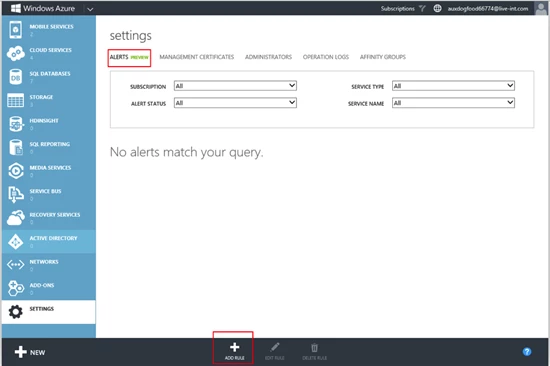
Adding an alert rule for a monitoring metric requires you navigate to Setting -> Alerts tab in the Portal. Click on the Add Rule button to create an alert rule.
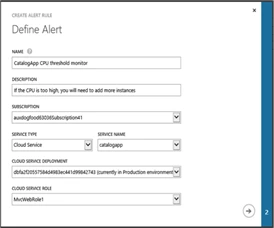
Give the Alert rule a name and optionally add a description. Pick the service on which you want to define the alert rule on, the next step in the alert creation wizard will filter the monitoring metrics based on the service that is selected.
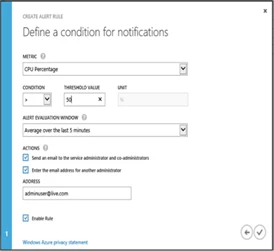
Each alert is calculated based on the values over the alert evaluation window. In the above example we have created a rule for a CPU based alert with a threshold of 50% over an evaluation windows of 5 minutes. This rule creates a monitor on the backend that evaluates the CPU percentage over a period of 5 minutes. Initially the alert is in “Not Activated” state, if the condition is violated the alert will transition to an “Active” state and when the alert condition is resolved the alert rules gets back to “Non Activated” state.
Each data point for CPU percentage is an average value over the last five minute period. In the backend the alerting engine evaluates each data point and triggers a state change event when a condition is violated or resolved.
An active alert for the condition defined in the rule above is shown here
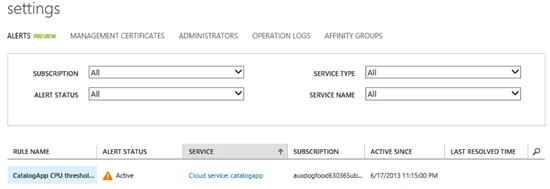
To get more details on the alert rule you can click on the rule name to navigate to the alert details page.
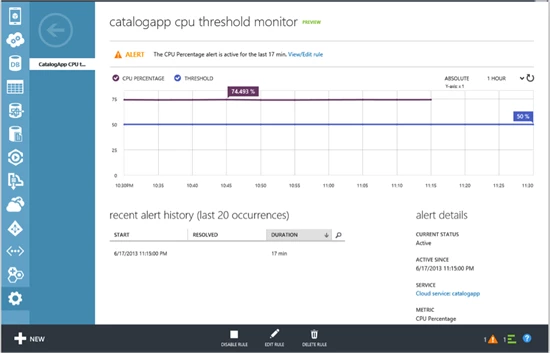
Here you can get a history of the recent times this alert was activated, this will help you determine if rule is getting activated often and the action you need to take so that the alert condition is not violated. You could also choose to edit the alert rule to change the condition. Also an alert rule can be disabled, this will stop processing of this rule on the backend.
Alert Notifications
When an alert is activated, if you had opted to receive an email notification an email is sent from email address Windows Azure Alerts (alerts-noreply@mail.windowsazure.com) to service or co-administrator email addresses and/or one additional administrator email address as defined in the alert rule. To receive alert emails you may need to add this email address to your email whitelist. Email notifications are sent on state transitions i.e. when an alert is activated or when an alert is resolved, note if an alert is active for an extended period of time an email is not sent in between, since only threshold violated and resolution are considered state changes.
Alerts and Monitoring Metrics
For each subscription, you can create up to 10 alert rules. For all compute services, you can create alert rules on web endpoint availability monitoring metrics. If you have enabled availability monitoring for urls, then you can select uptime or response time as measured from a geo-distributed location to be alerted on. For example, for a web site you may want to get alerted when the response time for the web site is greater than 1 second when measured from a location in Europe over a period of 15 minutes. This rule can be simply defined by creating an alert rule and picking the web site, selecting the response time metric, specifying the condition and an evaluation window of 15 minutes. Note the web site has to be already configured for web endpoint monitoring, this can be configured in the web site configure page after the web site is scaled up to standard mode.
For Virtual Machines and Cloud Services alert rules can be configured on metrics that are emitted from host operating system. In addition, for cloud services you can configure monitoring metrics on metrics derived from performance counters that are collected from the guest role instance. Alerting for cloud services is defined on metrics that are aggregated to the role level (values of metrics for each role instance metrics aggregated up to role level). To alert on metrics based on performance counters “Verbose monitoring” has to be enabled for the cloud service deployment. More details can be found in the how to monitor a cloud services.
Summary
With this update you can easily create alerting rules based on monitoring metrics and be notified about active or impending issues that require your attention within your application. During preview, each subscription is limited to 10 alert rules. If you encounter this limit, you will need to delete one or more alert rules within that subscription before you create a new rule.