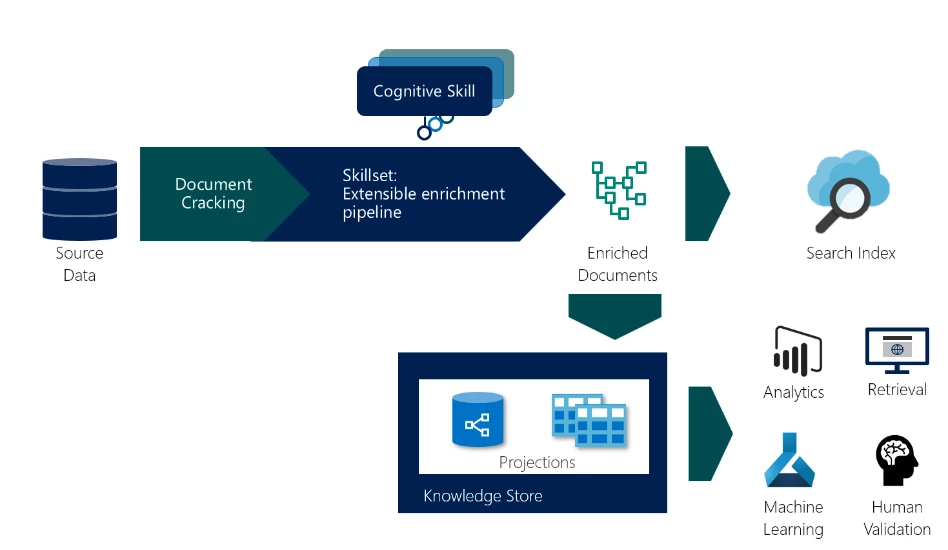
Through integration with Cognitive Services APIs, Azure Search has long had the ability to extract text and structure from images and unstructured content. Until recently, this capability was used exclusively in full text search scenarios, exemplified in demos like the JFK files which analyzes diverse content in JPEGs and makes it available for online search. The journey from visual unstructured content, to searchable structured content is enabled by a feature called cognitive search. This capability in Azure Search is now extended with the addition of a knowledge store that saves enrichments for further exploration and analysis beyond search itself.
The knowledge store feature of Azure Search, available in preview, refers to a persistence layer in cognitive search that describes a physical expression of documents created through AI enrichments. Enriched documents are projected into tables or hierarchical JSON, which you can explore using any client app that is able to access Azure Storage. In Azure Search itself, you define the physical expression or shape of the projections in the knowledge store settings within your skillset.
Customers are using a knowledge store (preview) in diverse ways, such as to validate the structure and accuracy of enrichments, generate training data for AI models, and ad-hoc analysis of their data.
For example, the Metropolitan Museum of Art opened access to all images of public domain works in its collection. Enriching the artworks with cognitive search and the knowledge store allowed us to explore the latent relationships within the artworks on different dimensions like time and geography. Questions like how have images of family groups changed over time, or when were domestic animals included in paintings, are now answerable when you are able to identify, extract, and save the information in a knowledge store (preview).
With the knowledge store, anyone with an Azure subscription can apply AI to find patterns, insights, or create dashboards over previously inaccessible content.
What is the knowledge store (preview)?
Cognitive search is the enrichment of documents with AI skills before they are added to your search index. The knowledge store allows you to project the already enriched documents as objects (blobs) in JSON format or tabular data in table storage.
As part of your projection, you can shape the enriched document to meet your needs. This ensures that the projected data aligns with your intended use.
When using tabular projections, a knowledge store (preview) can project your documents to multiple tables while preserving the relationships between the data projected across tables. The knowledge store has several other features like allowing you to save multiple unrelated projections of your data. You can find more information about a knowledge store (preview) in the overview documentation.
Data visualization and analytics
Search enables you to find relevant documents, but when you’re looking to explore your data for corpus wide aggregations or want to visualize changes over time you need your data represented in a form other than a search index.
Leveraging Power BI’s integration with Azure tables, gets your dashboard started with only a few clicks. To identify insights from the enriched documents over dimensions like time or space, simply project your enriched documents into tables, validate that Power BI recognizes the relationships and you should now have your data in a format that is ready to consume within the visuals.
When you create a visual, any filters work, even when your data spans related tables. As an example, the art dashboard was created on the open access data from the MET in the knowledge store and the Art Explorer site uses the search index generated from the same set of enrichments.
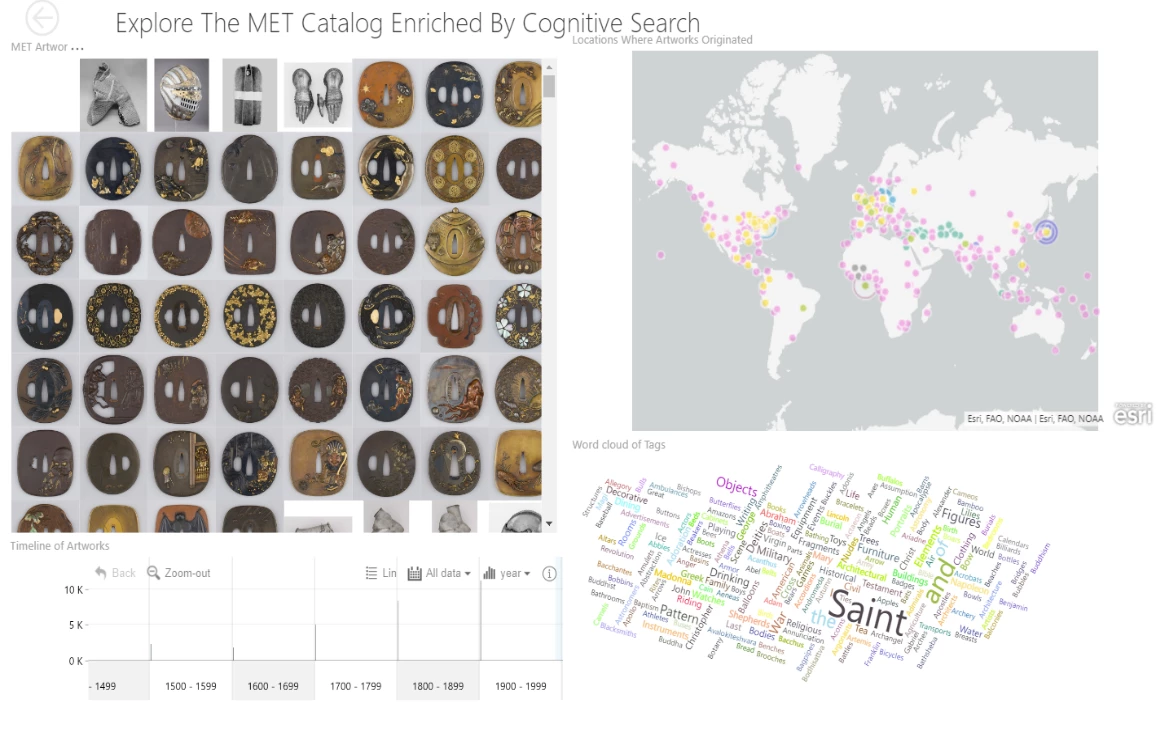
The art explorer site allows you to find art works and related works while the Power BI report gives you a visual representation of the corpus and allows you to slice your data along different dimensions. You now can answer questions like “How does body armor evolve over time?”
In this example, a knowledge store (preview) enabled us to analyze the data ad-hoc. In another example, we may for instance enrich invoices or business forms, project the structured data to a knowledge store (preview), and then create a business-critical report.
Improving AI models
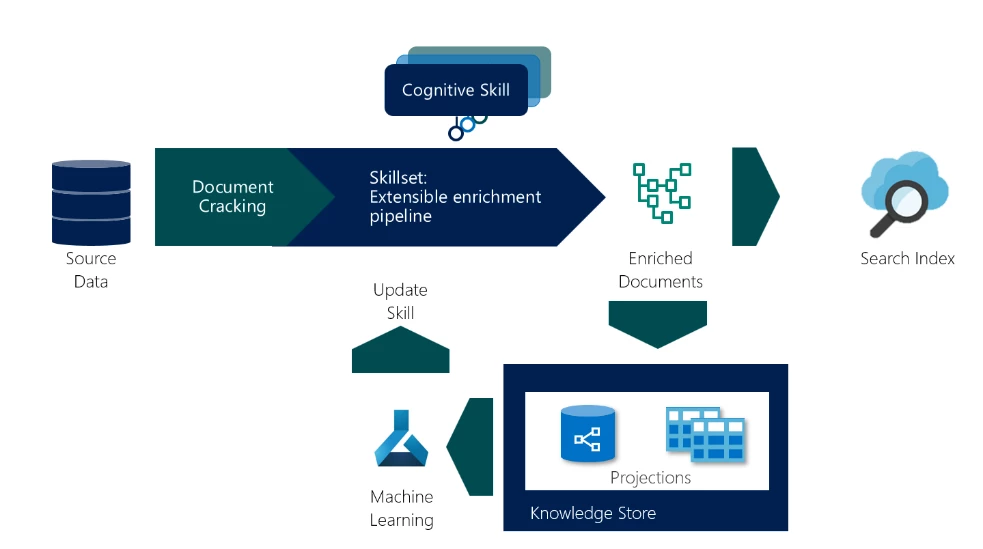
A knowledge store (preview) can also help improve the cognitive search experience itself as a data source for training AI models deployed as a custom skill within the enrichment pipeline. Customers deploying an AI model as a custom skill can project a slice of the enriched data shaped to be the source of their machine learning (ML) pipelines. A knowledge store (preview) now serves as a validator of the custom skill as well as a source of new data that can be manually labeled to retrain the model. While the enrichment pipeline operates on each document individually, corpus level skills like clustering require a set of documents to act on. A knowledge store (preview) can operate on the entire corpus to further enrich documents with skills like clustering and save the results back in a knowledge store (preview) or update the documents in the index.
Getting started
To start using a knowledge store (preview) you will need to:
- Add a knowledge store (preview) configuration to your skillset.
- Optionally, add a shaper skill to the skillset to define the shape of the projected enrichment.
- Add a projection for tables, objects, or both to a knowledge store (preview). You may project the output of the shaper skill, or elements from the enriched document directly.
A knowledge store (preview) enables the use of your enriched data in new or improved models, visualizing and exploring the data in tools like Power BI and app based experiences merging the raw and enriched data. We will continue to add more capabilities and updates over the coming months.
For a detailed walkthrough, see the knowledge store (preview) getting started guide.