Last week we announced a preview of Docker support for Microsoft Azure Cognitive Services with an initial set of containers ranging from Computer Vision and Face, to Text Analytics. Here we will focus on trying things out, firing up a cognitive service container, and seeing what it can do. For more details on which containers are available and what they offer, read the blog post “Getting started with these Azure Cognitive Service Containers.”
Installing Docker
You can run docker in many contexts, and for production environments you will definitely want to look at Azure Kubernetes Service (AKS) or Azure Service Fabric. In subsequent blogs we will dive into doing this in detail, but for now all we want to do is fire up a container on a local dev-box which works great for dev/test scenarios.
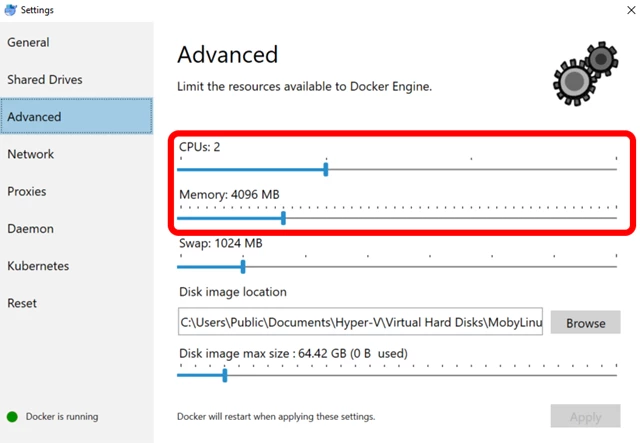
You can run Docker desktop on most dev-boxes, just download and follow the instructions. Once installed, make sure that Docker is configured to have at least 4G of RAM (one CPU is sufficient). In Docker for Windows it should look something like this:
Getting the images
The Text Analytics images are available directly from Docker Hub as follows:
- Key phrase extraction extracts key talking points and highlights in text either from English, German, Spanish, or Japanese.
- Language detection detects the natural language of text with a total of 120 languages supported.
- Sentiment analysis detects the level of positive or negative sentiment for input text using a confidence score across a variety of languages.
For the text and Recognize Text images, you need to sign up for the preview to get access:
- Face detection and recognition detects human faces in images as well as identifying attributes including face landmarks (nose, eyes, and more), gender, age, and other machine-predicted facial features. In addition to detection, this feature can check to see if two people in an image or images are the same by using a confidence score. It can compare it against a database to see if a similar-looking or identical face already exists, and it can also organize similar faces into groups using shared visual traits.
- Recognize Text detects text in an image using optical character recognition (OCR) and extracts the recognized words into a machine-readable character stream.
Here we are using the language detection image, but the other images work the same way. To download the image, run docker pull:
docker pull mcr.microsoft.com/azure-cognitive-services/language
You can also run docker pull to check for updated images.
Provisioning a Cognitive Service
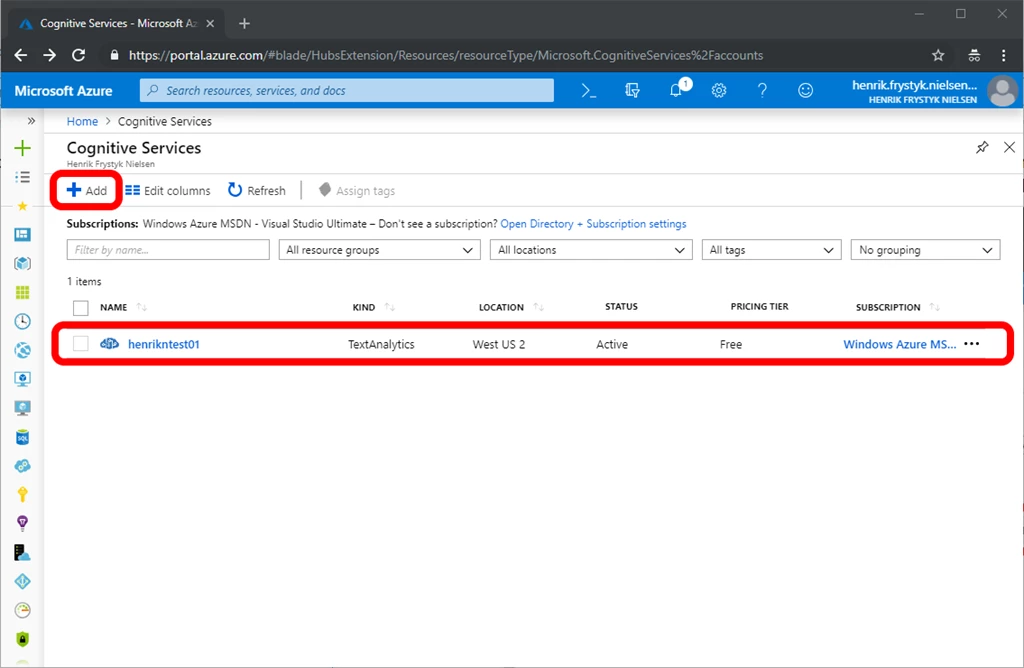
Now you have the image locally, but in order to run a container you need to get a valid API key and billing endpoints, then pass them as command line arguments. First, go to the Azure portal and open the Cognitive Services blade. If you don’t have a Cognitive Service that matches the container, in this case a Text Analytics service, then select add and create one. It should look something like this:
Once you have a Cognitive Service then get the endpoint and API key, you’ll need this to fire up the container:
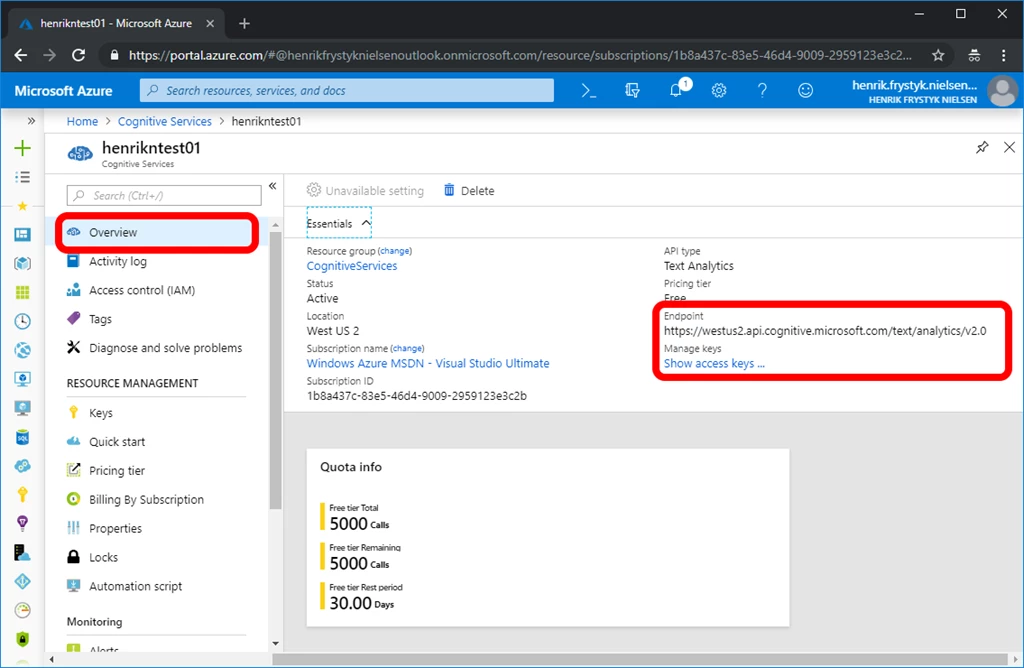
The endpoint is strictly used for billing only, no customer data ever flows that way.
Running a container
To fire up the container, you use the docker run command to pass the required docker options and image arguments:
docker run --rm -it -p 5000:5000 mcr.microsoft.com/azure-cognitive-services/language eula=accept apikey=billing=
The values for the API key and billing arguments come directly from the Azure portal as seen above. There are lots of Docker options that you can use, so we encourage you to check out the documentation. Likewise, there are lot of container arguments that control logging and lots of other features, to learn more check out the documentation.
If you need to configure an HTTP proxy for making outbound requests then you can do that using these two arguments:
- HTTP_PROXY – the proxy to use, e.g. https://proxy:8888
- HTTP_PROXY_CREDS – any credentials needed to authenticate against the proxy, e.g. username:password.
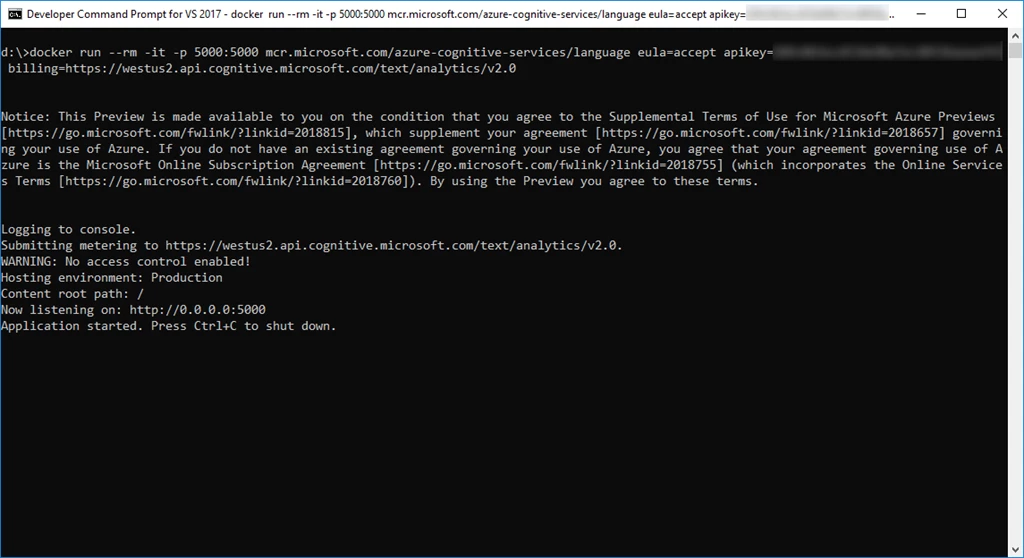
When running you should see something like this:
Trying it out
In the console window you can see that the container is listening on https://localhost:5000 so let’s open your favorite browser and point it to that.
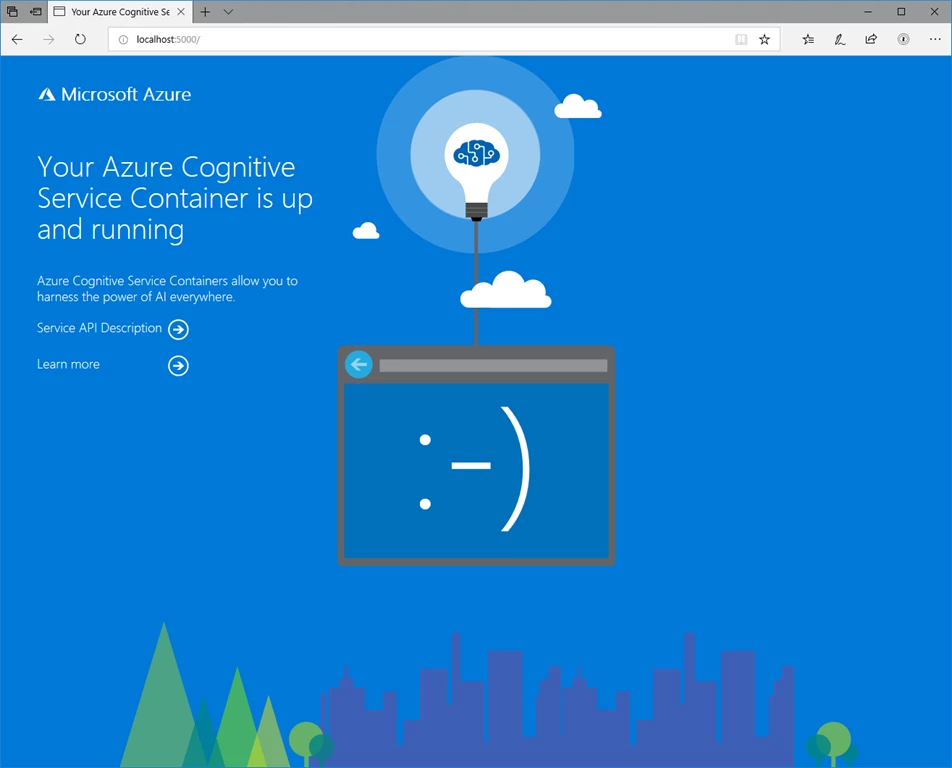
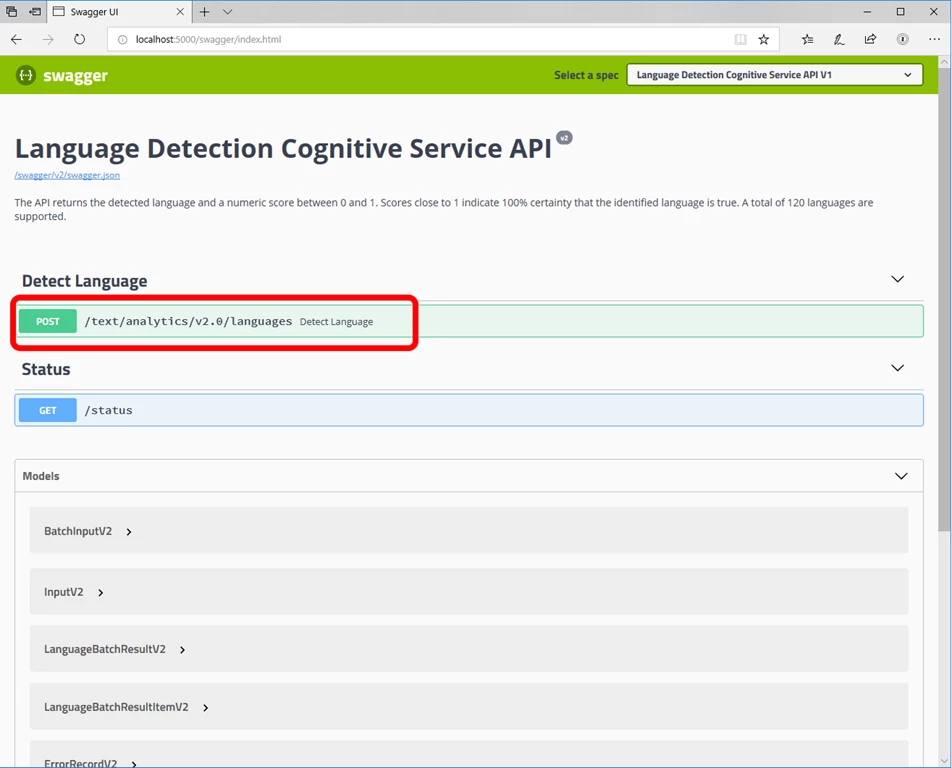
Now, select Service API Description or jump directly to https://localhost:5000/swagger. This will give you a detailed description of the API.
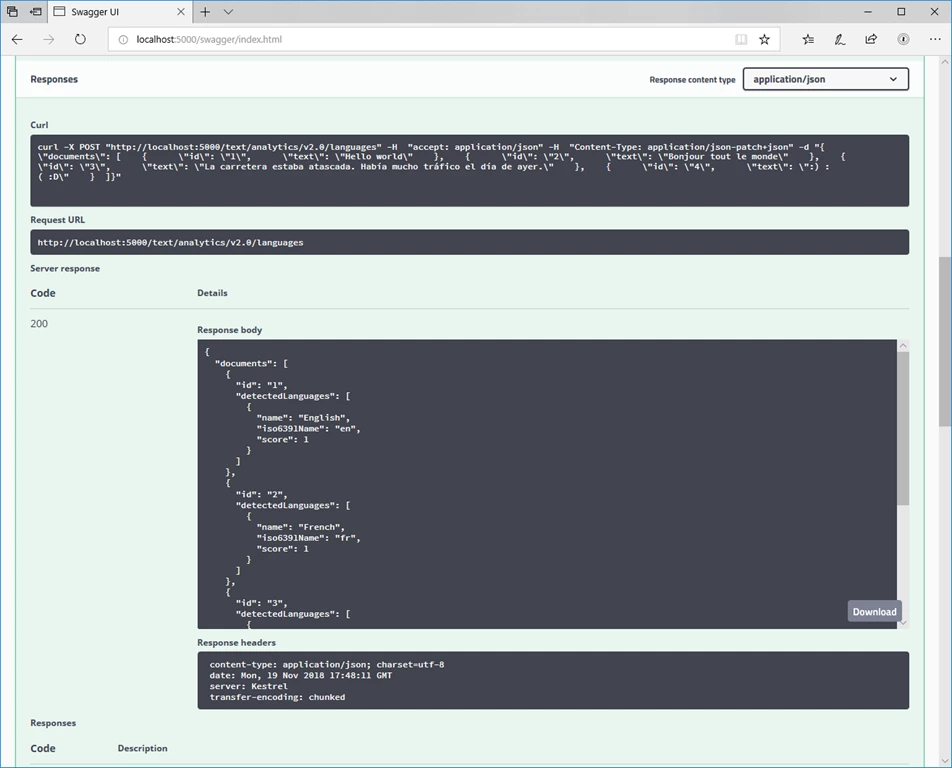
Select Try it out and then Execute, you can change the input value as you like.
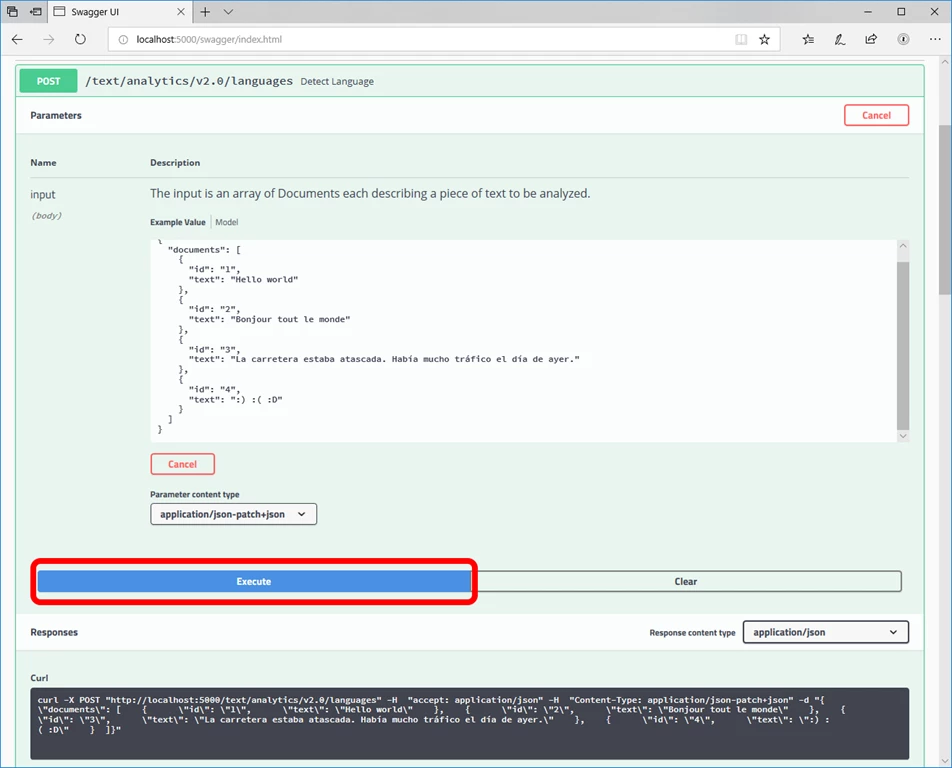
The result will show up further down on the page and should look something like the following image:
You are now up and running! You can play around with the swagger UX and try out various scenarios. In our blogs to follow, we will be looking at additional aspects of consuming the API from an application as well as configuring, deploying, and monitoring containers. Have fun!