Today, we are excited to announce the availability of the OS Disk Swap capability for VMs using Managed Disks. Until now, this capability was only available for Unmanaged Disks.
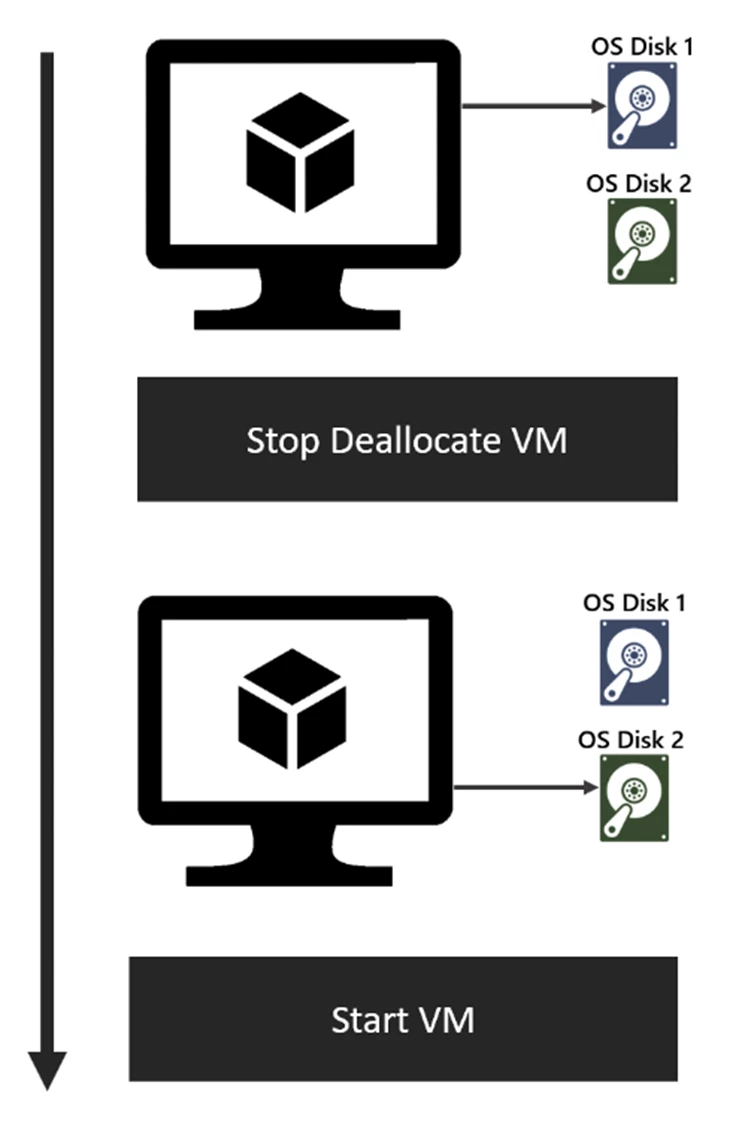
With this capability, it becomes very easy to restore a previous backup of the OS Disk or swap out the OS Disk for VM troubleshooting without having to delete the VM. To leverage this capability, the VM needs to be in stop deallocated state. After the VM is stop deallocated, the resource ID of the existing Managed OS Disk can be replaced with the resource ID of the new Managed OS Disk. You will need to specify the name of the new disk to swap. Please note that you cannot switch the OS Type of the VM i.e. Switch an OS Disk with Linux for an OS Disk with Windows
Here are the instructions on how to leverage this capability:
Azure CLI
To read more about using Azure CLI, see Change the OS disk used by an Azure VM using the CLI.
For CLI, use the full resource ID of the new disk to the –osdisk parameter
NOTE: required Azure CLI version > 2.0.25
az vm update –g osrg -n vm2 --os-disk /subscriptions//resourceGroups/osrg/providers/Microsoft.Compute
/disks/osbackup
Azure PowerShell
To read more about using PowerShell, see Change the OS disk used by an Azure VM using PowerShell.
$vm = Get-AzureRmVM -ResourceGroupName osrg -Name vm2
$disk = Get-AzureRmDisk -ResourceGroupName osrg -Name osbackup
Set-AzureRmVMOSDisk -VM $vm -ManagedDiskId $disk.Id -Name $disk.Name
Update-AzureRmVM -ResourceGroupName osrg -VM $vm
Java SDK
VirtualMachine virtualMachine = azure.virtualMachines().getById("");

virtualMachine
    .inner()
    .storageProfile()
    .osDisk()
    .withName("")
    .managedDisk()
    .withId("");

virtualMachine.update()
    .apply();
GO SDK
func UpdateVM(ctx context.Context, vmName string, diskId string, diskName string) (vm compute.VirtualMachine, err error) {
    vm, err = GetVM(ctx, vmName)

    if err != nil {
        return
    }

    vm.VirtualMachineProperties.StorageProfile.OsDisk.Name = diskName
    vm.VirtualMachineProperties.StorageProfile.OsDisk.ManagedDisk.Id = diskId

    vmClient := getVMClient()

    future, err := vmClient.CreateOrUpdate(ctx, helpers.ResourceGroupName(), vmName, vm)

    if err != nil {
        return vm, fmt.Errorf("cannot update vm: %v", err)
    }

    err = future.WaitForCompletion(ctx, vmClient.Client)

    if err != nil {
        return vm, fmt.Errorf("cannot get the vm create or update future response: %v", err)
    }

    return future.Result(vmClient)
}
Today, we are excited to announce the availability of the OS Disk Swap capability for VMs using Managed Disks. Until now, this capability was only available for Unmanaged Disks.
With this capability, it becomes very easy to restore a previous backup of the OS Disk or swap out the OS Disk for VM troubleshooting without having to delete the VM. To leverage this capability, the VM needs to be in stop deallocated state. After the VM is stop deallocated, the resource ID of the existing Managed OS Disk can be replaced with the resource ID of the new Managed OS Disk. You will need to specify the name of the new disk to swap. Please note that you cannot switch the OS Type of the VM i.e. Switch an OS Disk with Linux for an OS Disk with Windows
Here are the instructions on how to leverage this capability:
Azure CLI
To read more about using Azure CLI, see Change the OS disk used by an Azure VM using the CLI.
For CLI, use the full resource ID of the new disk to the –osdisk parameter
NOTE: required Azure CLI version > 2.0.25
az vm update –g osrg -n vm2 --os-disk /subscriptions//resourceGroups/osrg/providers/Microsoft.Compute/disks/osbackup
Azure PowerShell
To read more about using PowerShell, see Change the OS disk used by an Azure VM using PowerShell.
$vm = Get-AzureRmVM -ResourceGroupName osrg -Name vm2
$disk = Get-AzureRmDisk -ResourceGroupName osrg -Name osbackup
Set-AzureRmVMOSDisk -VM $vm -ManagedDiskId $disk.Id -Name $disk.Name
Update-AzureRmVM -ResourceGroupName osrg -VM $vm
Java SDK
VirtualMachine virtualMachine = azure.virtualMachines().getById("");

virtualMachine
    .inner()
    .storageProfile()
    .osDisk()
    .withName("")
    .managedDisk()
    .withId("");

virtualMachine.update()
    .apply();
GO SDK
func UpdateVM(ctx context.Context, vmName string, diskId string, diskName string) (vm compute.VirtualMachine, err error) {
    vm, err = GetVM(ctx, vmName)

    if err != nil {
        return
    }

    vm.VirtualMachineProperties.StorageProfile.OsDisk.Name = diskName
    vm.VirtualMachineProperties.StorageProfile.OsDisk.ManagedDisk.Id = diskId

    vmClient := getVMClient()

    future, err := vmClient.CreateOrUpdate(ctx, helpers.ResourceGroupName(), vmName, vm)

    if err != nil {
        return vm, fmt.Errorf("cannot update vm: %v", err)
    }

    err = future.WaitForCompletion(ctx, vmClient.Client)

    if err != nil {
        return vm, fmt.Errorf("cannot get the vm create or update future response: %v", err)
    }

    return future.Result(vmClient)
}